Visual editor tips and limits
Most elements you click can be edited straight away. Some cannot, and TatbiQ tells you why and offers to make the change through the AI instead. This page explains the cases you will run into and how to handle each one.
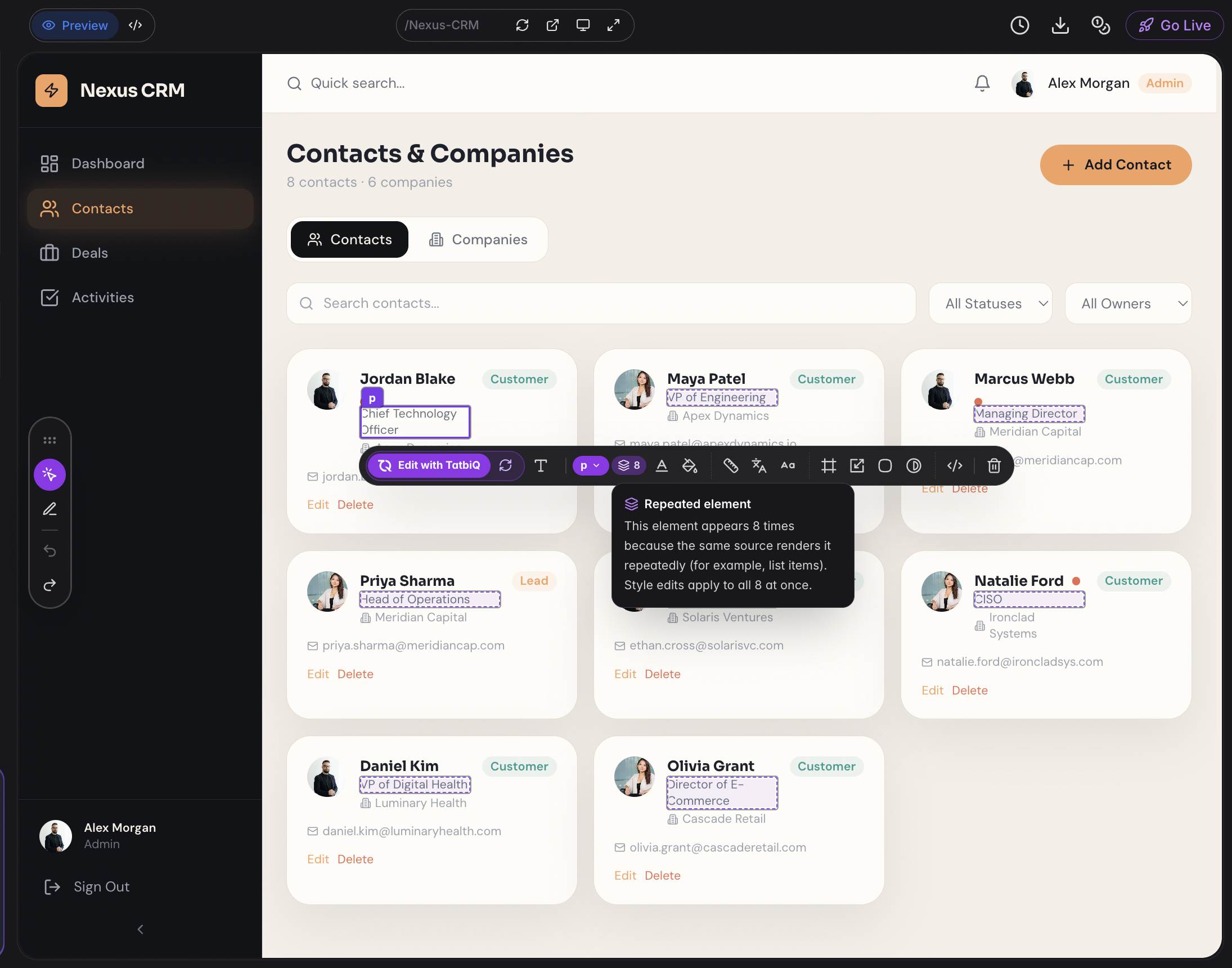
One element, many copies
Lists, card grids, and repeated rows are usually built once and drawn many times. When you select something like that, a chip appears saying Repeated element with a count of how many copies exist.
This matters because style changes apply to every copy at once. Change the corner radius on one product card and all of them get it. That is normally what you want, since the cards are meant to match.
If you genuinely want just one of them to look different, use Edit with TatbiQ and say so in your request.
Text that appears in more than one place
Some text is written once and shown in several places, or comes from a list of content in your app. When you edit text like that, TatbiQ tells you how many places it appears and gives you two options:
- Change all updates every place the text appears.
- Edit with TatbiQ hands the request to the AI so only the one you selected changes.
Content and styles that come from code
Not everything on a page is written out directly. A price might be calculated, a label might change with the language, and styles can be chosen while the page runs. TatbiQ cannot rewrite those by hand without guessing, so instead of a text box or colour picker you get a short explanation and an Edit with TatbiQ button.
Selecting it opens a small box where you describe the change. Your selected element goes along with the message, so you can write "make this smaller" without explaining which element you mean. These messages are charged at the normal chat rate. See Chat edit credit costs.
Redesign an element
Regenerate design asks the AI to restyle the element you selected while keeping its words and its behaviour. Use it when something looks dated or out of place and you would rather see a suggestion than specify every property yourself. TatbiQ asks you to confirm before it starts, and the result becomes a checkpoint like any other AI edit.
Deleting elements
Delete element removes your selection. Three things to know:
- If the element contains several others, TatbiQ asks you to confirm first and tells you how many will go with it.
- If the element is one of several copies, you can choose Delete all to remove every copy, or hand it to the AI to remove only the one you picked.
- A few elements hold a page together and cannot be removed by hand. TatbiQ offers to have the AI remove them instead.
Deleting is covered by undo, and by Checkpoints if you have already deployed.
Fonts apply more widely than you might expect
The font control offers three targets, and the difference is important:
- Element changes only the element you selected.
- Headings changes every heading in your app.
- Body changes all your body text.
Headings and Body are project-wide, so they are the quick way to restyle a whole app and the easy way to change more than you meant.
You can also upload your own typeface. TatbiQ accepts WOFF2, WOFF, TTF, and OTF files up to 5 MB. Arabic-capable fonts are listed first when your project is in Arabic.
Swapping images
Change image takes either a web address or a file from your computer. Uploads
must be PNG, JPEG, or WebP, up to 5 MB. Web addresses have to start with https://
or point at a file inside your project. If the image is chosen by code rather than
written into the page, you will be offered Edit with TatbiQ instead.
When your preview is out of date
The visual editor works against the version of your app that is currently built, so the two can drift apart when the AI edits your project or when you leave a project open for a long time.
TatbiQ usually fixes this for you: if it notices your project has changed, it redeploys the preview automatically and tells you it is syncing. When it cannot, it asks you to deploy again, and editing works normally afterwards.
Deploy before you walk away from a session. Your visual changes are saved into your app immediately, but the live preview and your published app only pick them up on the next deploy.
Messages you might see
| Message | What it means |
|---|---|
| Edit mode paused while the builder is working | The AI is editing your app. Editing resumes on its own when it finishes. |
| Project files changed - syncing the preview automatically | Your project moved on and TatbiQ is rebuilding the preview for you. Wait for it to finish. |
| Project files changed - deploy again to continue editing | Deploy your project once, then carry on editing. |
| This element moved since the last deploy - deploy again to continue editing it | The element is still there but has shifted in your project. Deploy to line them up again. |
| An external change replaced your undeployed edits - deploy to sync | Something else changed the same part of your app. Deploy to get back in step. |
| The selected element is no longer on the page - the app updated it | Your app changed underneath you. Select the element again. |
| This file could not be parsed for visual editing - ask TatbiQ to make the change | Use Edit with TatbiQ for this one. |
| Could not save the change - check the connection and try again | A network problem. Check your connection and retry from the save status. |
On phones and in Arabic
The visual editor works on touch screens. Tap to select, press and hold to pick a parent element, and tap a selected element again to start typing. Controls open as panels from the bottom of the screen so they stay within thumb reach.
Everything is available in Arabic, with the toolbar and panels laid out right-to-left. See Changing language.