Annotations
Describing where something is can take longer than pointing at it. With annotations you draw directly on your app preview, circle the part you are talking about, and send that drawing to the AI along with your request. The AI sees exactly what you marked.
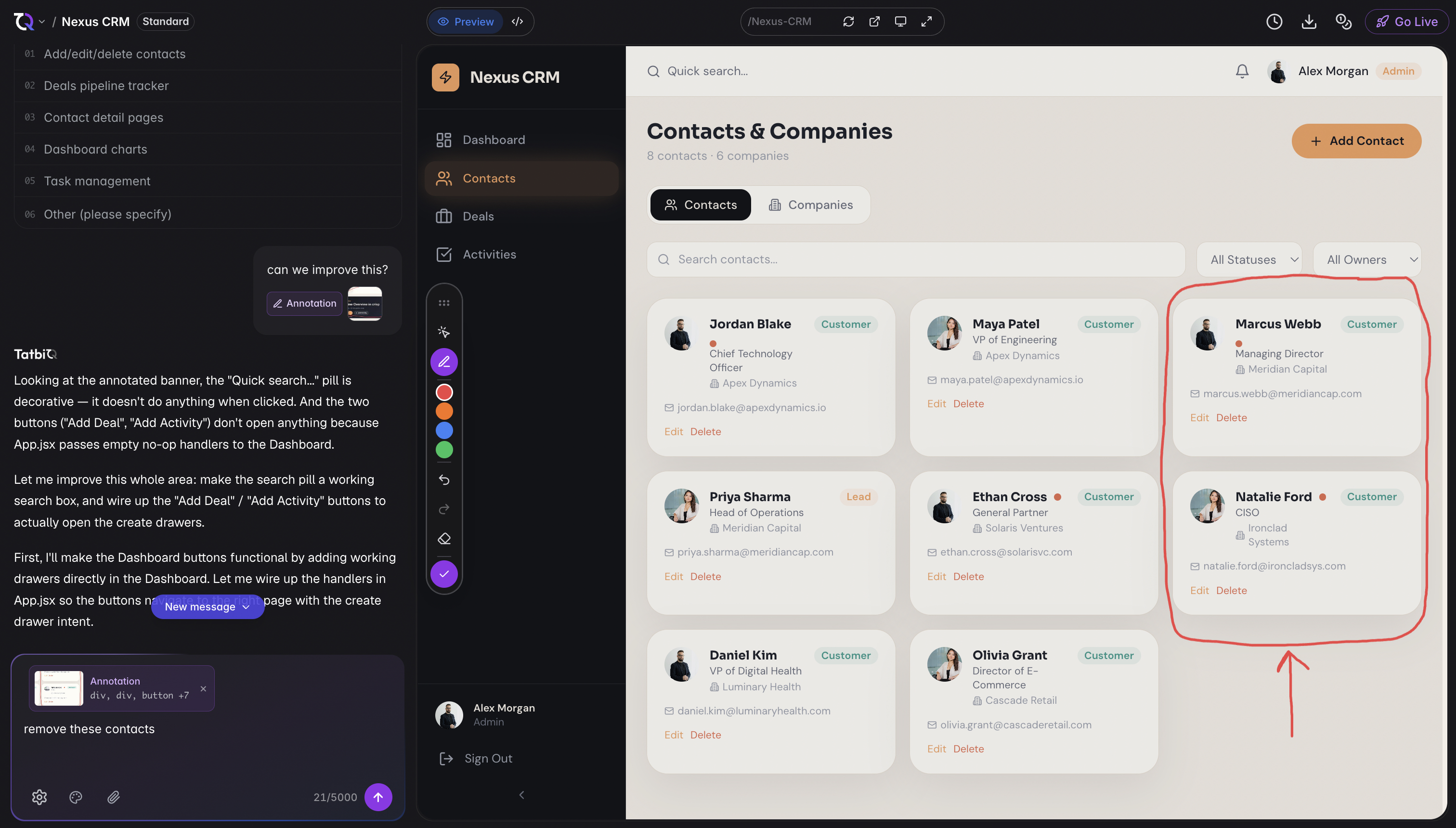
This is the fastest way to handle requests like "make this bit narrower" or "these three cards should line up", where the words are simple but the target is hard to name.
Draw an annotation
In the editor toolbar over your preview, choose the annotate option, labelled Draw annotations on the preview.
Four stroke colours appear in the toolbar. They are all treated the same way, so use them to keep separate marks apart when you draw more than one.
Circle, underline, cross out, or arrow towards whatever you want to talk about. You can write words as well. Scrolling still works, and your marks stay attached to the content you drew them on.
Select Done. TatbiQ captures the area you drew on and adds it to the chat box as an Annotation attachment.
Type what you want changed and send the message as usual. The AI reads your words and your drawing together.
If you have not drawn anything yet, Done stays disabled and reads Draw on the preview first.
Fixing mistakes while you draw
- Undo removes your last stroke, and redo puts it back. Both are in the toolbar.
- Clear removes every stroke and gives you a blank preview to start again.
- To drop an annotation after capturing it, remove the Annotation attachment from the chat box before sending.
On a touch screen, draw with one finger. Put a second finger down to scroll or pinch to zoom instead of drawing.
How the AI reads your drawing
TatbiQ treats your ink as a way of pointing, not as artwork to reproduce. A circle or an arrow means "this thing here". Words you write by hand are read as instructions. Your drawing is never added to your app as an image unless you explicitly ask for that in your message.
Because of this, the clearest annotations combine a simple mark with a short sentence. Circle a card and write "make this full width" and the result is reliable. Sketching a whole new layout and sending it without explanation is not, because the AI cannot tell which lines are instructions and which are content.
If your request is ambiguous, the AI asks you one question before making changes rather than guessing.
What it costs
An annotation is sent as an attachment, so the message is charged at the same rate as any chat edit with an image: 35 credits. Drawing itself is free, and you can clear and redraw as often as you like before you send. See Chat edit credit costs.
Good to know
- You can attach up to five items to one chat message, and annotations count towards that.
- When an annotation is attached, keep your message under 1000 characters. If it is longer, TatbiQ asks you to shorten it before sending.
- After you select Done, the preview is cleared so you can immediately draw your next annotation without leaving annotate mode.
- If the AI is already working, your message joins the prompt queue with the annotation attached.