Custom domains
Every TatbiQ app can go live on a free tatbiq.io subdomain, and you can also
connect your own custom domain (for example, yourapp.com). Custom domains are
set up through our partner Entri, which configures DNS for you, while TatbiQ
handles SSL and routing automatically.
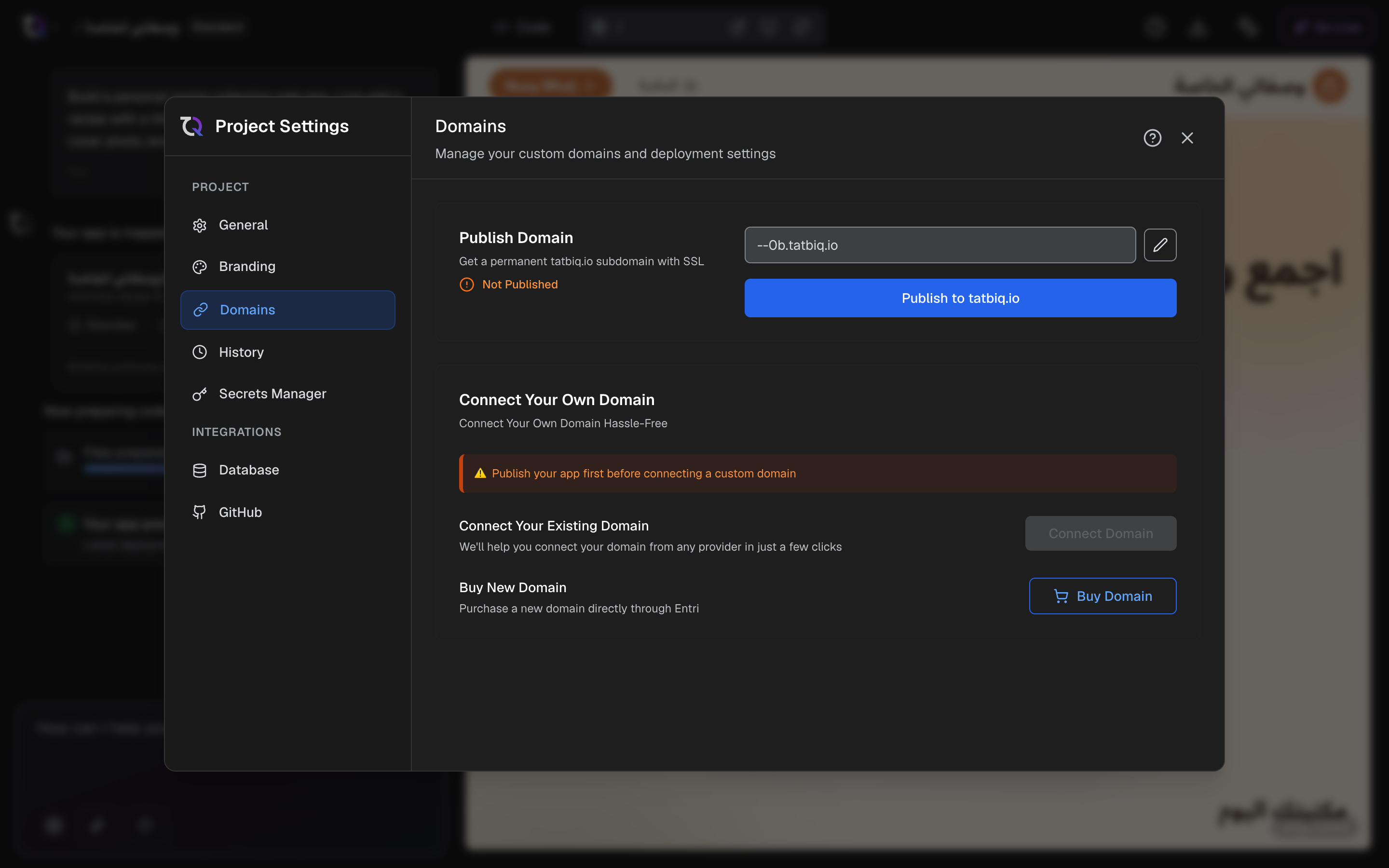
What you need
- A published app. You must publish your app to a
tatbiq.iosubdomain before you can connect an existing custom domain. - A domain you own, with access to its DNS settings, or you can buy a new domain during the process.
Publish first
Open your project and go to Settings, then select Domains.
In the Publish Domain section, choose a tatbiq.io subdomain and select
Publish to tatbiq.io.
Your app is now live on its subdomain with SSL included. You can also publish from the Go Live wizard.
Connect a domain you already own
In Domains, find the Connect Your Own Domain section.
Select Connect Domain. Entri opens to guide you through the DNS setup.
In Entri, sign in to your domain provider (such as GoDaddy or Namecheap). Entri configures the required DNS records for you.
When you finish, TatbiQ verifies your DNS and begins setting up your domain.
DNS changes can take anywhere from a few minutes up to 48 hours to take effect.
While your SSL certificate is being set up, use the http:// version of your
domain until SSL becomes active. TatbiQ updates the status automatically as the
domain becomes ready.
Buy a new domain
If you do not have a domain yet, select Buy New Domain in the Domains settings. Entri lets you search for and purchase a domain, then connects it to your app. DNS configuration and SSL are handled for you.
Domain limits and status
Each project supports up to three domains: a preview domain, a published
tatbiq.io subdomain, and one custom domain. The Domains settings show the
current status of each, including DNS and SSL progress.
Disconnecting a domain
To remove a custom domain, select Disconnect Domain in the Domains
settings and confirm. Your app stays live on its tatbiq.io subdomain, and you
can connect a domain again later.