UAE PASS
UAE PASS is the UAE national digital identity. Connect it so people can sign in to your app with it. They press Sign in with UAE PASS, confirm on the UAE PASS app on their phone, and come back to your app signed in.
What you can build
| App | Ask chat |
|---|---|
| Resident or customer portal | "Let people sign in with UAE PASS" |
| Member or booking app | "Add UAE PASS login to my app" |
| Service for UAE residents | "Residents should log in with their national digital ID" |
UAE PASS in TatbiQ is for signing in. It doesn't sign documents.
Before you start
- Your app's backend, set up in Database & Backend. See Your app needs a backend first.
- To try it: a UAE PASS staging account on the UAE PASS staging app. See UAE PASS's Create Staging UAE PASS Account.
- To go live: your organisation's own onboarding with UAE PASS. Private companies need a UAE trade licence. Onboarding takes time, so start early.
Get your keys
UAE PASS uses a client ID and a client secret. There are two ways to start:
| Public test keys | Your organisation's keys | |
|---|---|---|
| Good for | Trying it out today | Your real app |
| Where from | Built into the Hub | UAE PASS, after you sign up |
| Who can sign in | Staging accounts only | Staging accounts, then everyone after go-live |
| Can go live | No | Yes |
To get your organisation's keys:
Send a request on the UAE PASS developer portal. Say whether you're a government or private entity.
The UAE PASS onboarding team sends a questionnaire and asks how people will sign in to your app.
UAE PASS sends a test (staging) client ID and secret. Live keys come later, after they approve your app.
UAE PASS explains each phase in its onboarding process. The Hub links to it as How to get your UAE PASS key.
Connect UAE PASS in TatbiQ
Select Settings below the chat box, then Integration Hub. Select Add an integration and pick UAE PASS.
Under Connect your UAE PASS account, paste your Test client ID and Test client secret. Just trying it out? Select Use UAE PASS's public test keys instead.
The Hub shows We picked the usual choices. Select Change to decide who can sign in and how people with an existing account link it. See Who can sign in.
The Hub shows Keys saved.
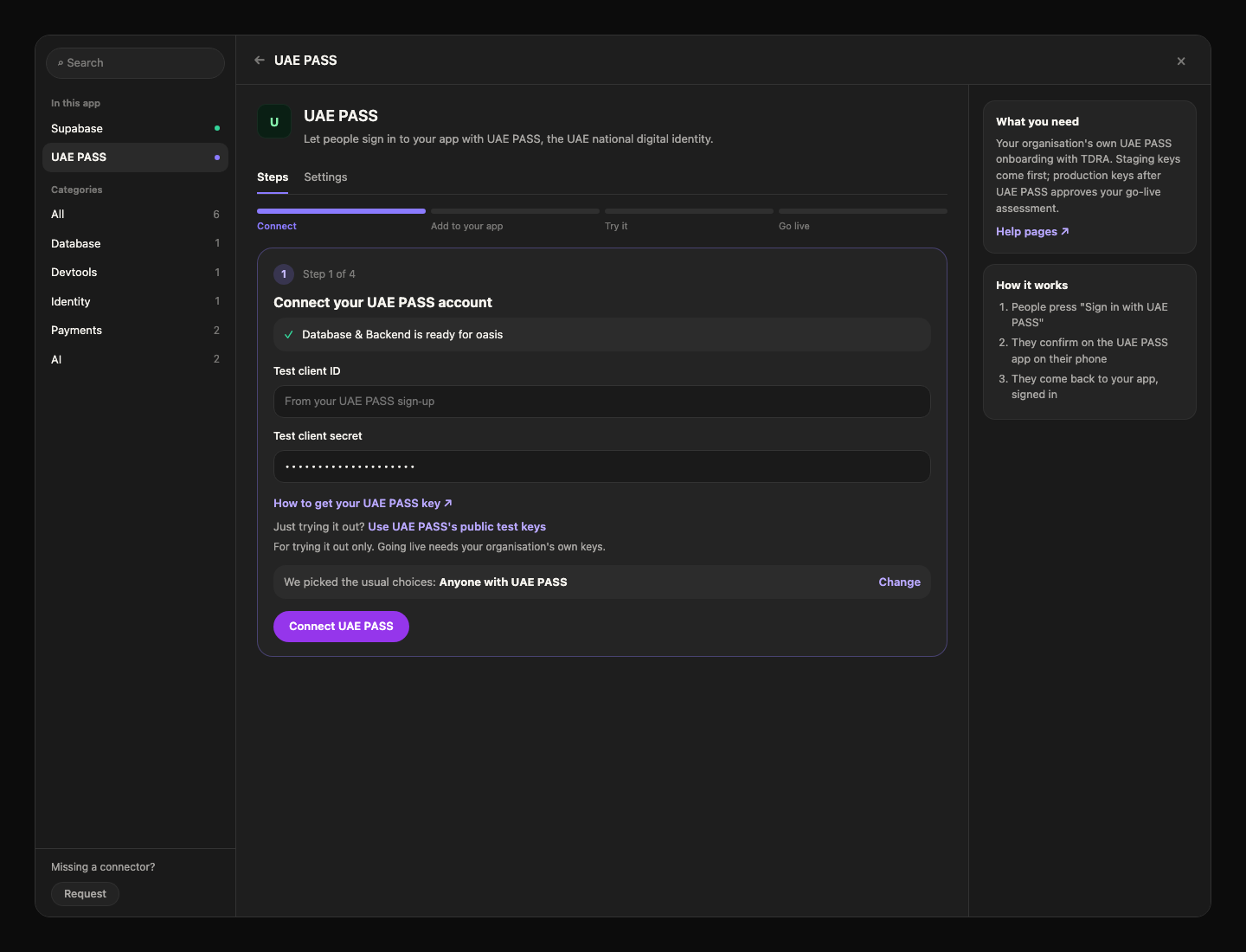
UAE PASS doesn't let TatbiQ check keys when you save them. The Hub checks them with UAE PASS once your app is set up, and tells you if they don't work.
Live keys can wait. You add them in the Go live step.
Add it to your app
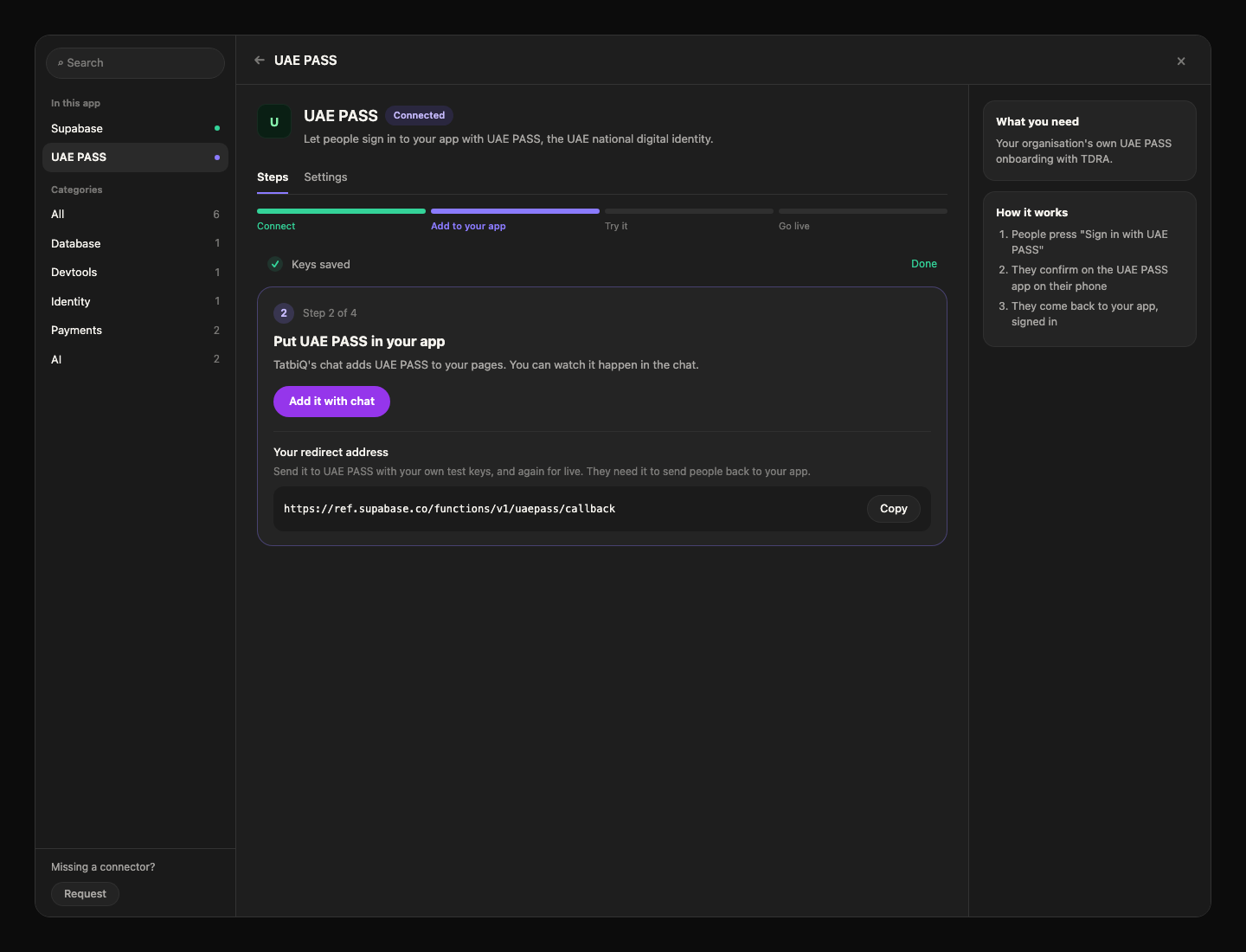
Under Put UAE PASS in your app, select Add it with chat. Chat adds:
- The official Sign in with UAE PASS button on your sign-in page, in its own section. Arabic pages get the Arabic button.
- A page people come back to after UAE PASS, which signs them in or creates their account.
- A Link UAE PASS option on the profile page, if your app has one.
- Sign-out that also signs people out of UAE PASS.
- A small "Test mode - UAE PASS staging accounts only" note near the button while you test.
Chat then shows UAE PASS is ready to test. If it says a database update is waiting, press Migrate first: it adds the tables sign-in needs.
Your app never asks for or keeps anyone's Emirates ID number. Names, email and mobile from UAE PASS show read only.
Send UAE PASS your redirect address
With your organisation's keys, UAE PASS only sends people back to addresses you've registered. Once UAE PASS is in your app, the Hub shows Your redirect address with a Copy button. Send it to UAE PASS with your test keys, and again for live.
The public test keys accept any address, so you can skip this while trying it out.
Try a test sign-in
UAE PASS won't finish inside the editor, so use a separate tab.
Press Sign in with UAE PASS and confirm on the UAE PASS staging app. Real UAE PASS accounts don't work in test mode.
You come back signed in, with your name from UAE PASS on the page. In the Hub, Waiting for your test sign-in ticks by itself and becomes Test sign-in received, with the time and the account level.
No staging account yet? Follow Create Staging UAE PASS Account. New staging accounts are basic (SOP1); to test verified levels, see Upgrade Staging UAE PASS Account. The Hub links these as UAE PASS test details.
Go live
Open the Go live step. Three items tick by themselves; tick the other two yourself:
| Checklist item | Ticks |
|---|---|
| You tried a test sign-in in the preview | By itself |
| UAE PASS approved your app | You tick it |
| Your live keys are saved | By itself, once you paste the Live client ID and Live client secret here |
| You sent your redirect address to UAE PASS for live sign-ins | You tick it |
| Your app is published on its final domain | By itself |
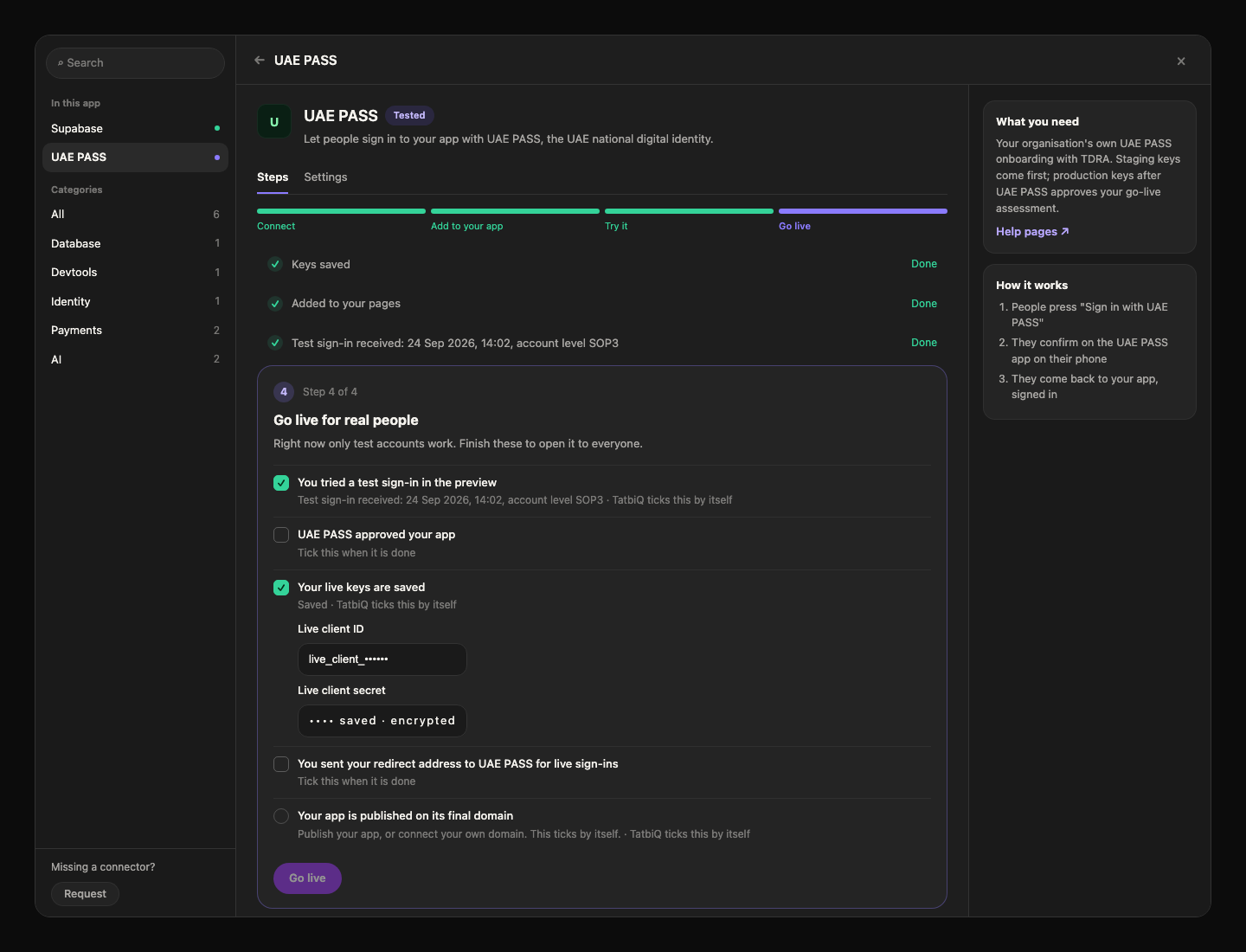
Then select Go live. It takes effect right away, without a rebuild. The Hub shows Waiting for your first live sign-in until a real one arrives, then Live: first sign-in received.
Before UAE PASS approves you, they review your sign-in journey, usually from screen recordings, and private companies sign a service provider agreement. Then you send their go-live form and receive live keys. See UAE PASS's Assessment Phase and Go live Phase.
The public test keys can't go live. You need your organisation's own live keys.
Who can sign in
Under Which UAE PASS accounts can sign in?, pick one:
| Choice | Accounts |
|---|---|
| Anyone with UAE PASS (the usual choice) | Basic and verified accounts (SOP1, SOP2, SOP3) |
| Only verified accounts | SOP2 and SOP3 |
| Only the highest level | SOP3 |
A basic account (SOP1) has a checked email and mobile but no verified identity. Verified accounts (SOP2 and SOP3) were checked against an Emirates ID. See UAE PASS's User Account Types.
To close sign-up to new people, answer No to Can new people create an account with UAE PASS?. Only people who already have an account can then sign in.
People who already have an account
If your app has people who sign in with email and password, answer Yes to Does this app already have people who sign in with email and password?. Then:
- After UAE PASS, they can choose I already have an account - link it and sign in once with their password.
- Signed-in people can select Link UAE PASS on their profile page.
- If you also answer Yes to Link an existing account automatically when its confirmed email matches the UAE PASS email?, a matching account links by itself.
UAE PASS describes these options in User Linking.
The UAE PASS button
UAE PASS checks its button during approval. Chat uses the official image and keeps UAE PASS's rules: don't recolour, crop, stretch or redraw it, keep it at least 140px wide, and keep it apart from your own sign-in form. If you restyle your sign-in page, ask chat to keep the button as it is. UAE PASS's files and guidelines are on Login Button.
Manage and remove
Change your choices under Settings, replace your keys, or remove UAE PASS the same way as any service. See Connect and manage. Removing UAE PASS keeps the links between people's accounts and their UAE PASS, so nobody loses their account.
Troubleshooting
| You see | What to do |
|---|---|
| "UAE PASS stopped accepting your keys. Paste them again to fix it." | Check the keys UAE PASS sent you. In the Hub, select Fix, paste them, then Check again. |
| UAE PASS shows an error about the redirect | Send UAE PASS your redirect address, or wait until they register it. |
| "Your UAE PASS account level is not accepted here. Upgrade your UAE PASS account to a verified account, then try again." | The account's level is outside your choice. Pick a wider choice under Who can sign in, or ask the person to upgrade. |
| "This app only lets existing members sign in with UAE PASS." | You answered No to new accounts. Change it under Settings, Choices for this app. |
| "Sign-in must finish in the same browser it started in. Please try again." | The person finished in a different browser. Start again in one browser. |
| "UAE PASS sign-in is not available right now." | Your app may have a new address, such as a new domain. Open Settings, then Advanced, and select Set up again. Your browser's console says what's missing. |
FAQ
Do I need my own keys to try it?
No. Select Use UAE PASS's public test keys and sign in with a staging account. You need your own keys to go live.
Does my app see people's Emirates ID number?
No. Your app never asks for, shows or keeps it.
Can people who signed up with email use UAE PASS?
Yes, if you answered Yes to the existing-accounts question. They link UAE PASS once, then sign in either way.
Why can't I sign in with my real UAE PASS in test mode?
Test mode uses UAE PASS staging, which only knows staging accounts. Real accounts work after you go live.