Integration Hub
The Integration Hub is where you connect your app to the services it relies on: payments, sign-in, AI, a database, and a copy of your code. You connect a service once, and TatbiQ adds it to your app for you. Private keys stay out of your app's code.
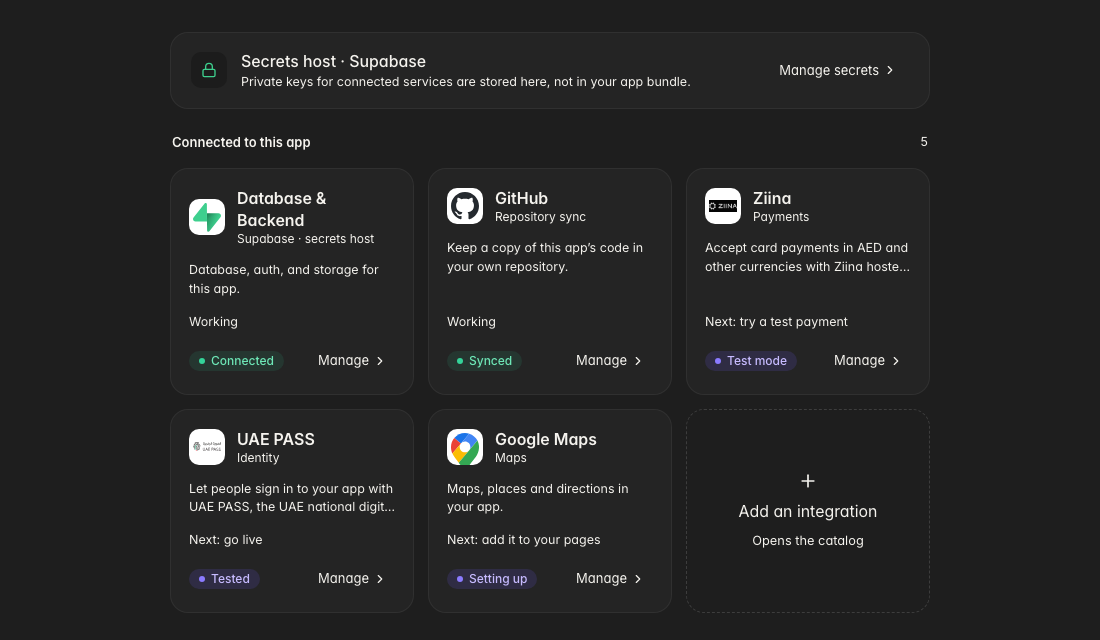
What you can connect
TatbiQ connects to these services today.
| Service | What it adds to your app | You'll need | Setup |
|---|---|---|---|
| Database & Backend | A database, sign-in, file storage, and a safe place for private keys. Powered by Supabase. | A Supabase account | Sign in |
| GitHub | A copy of your app's code in your own GitHub repository. | A GitHub account | Sign in |
| Ziina | Card payments in AED and other currencies, with Ziina's hosted checkout. | A Ziina account and access token | Guided |
| UAE PASS | Sign-in with the UAE national digital identity. | UAE PASS client ID and secret. Public test keys are available for trying it out. | Guided |
| ChatGPT | AI answers and writing, using your own OpenAI account. | An OpenAI API key | Quick |
| Gemini | AI answers and writing, using your own Google Gemini key. | A Gemini API key | Quick |
Guided and Quick are the two setup paths, explained in How connecting works.
Coming soon
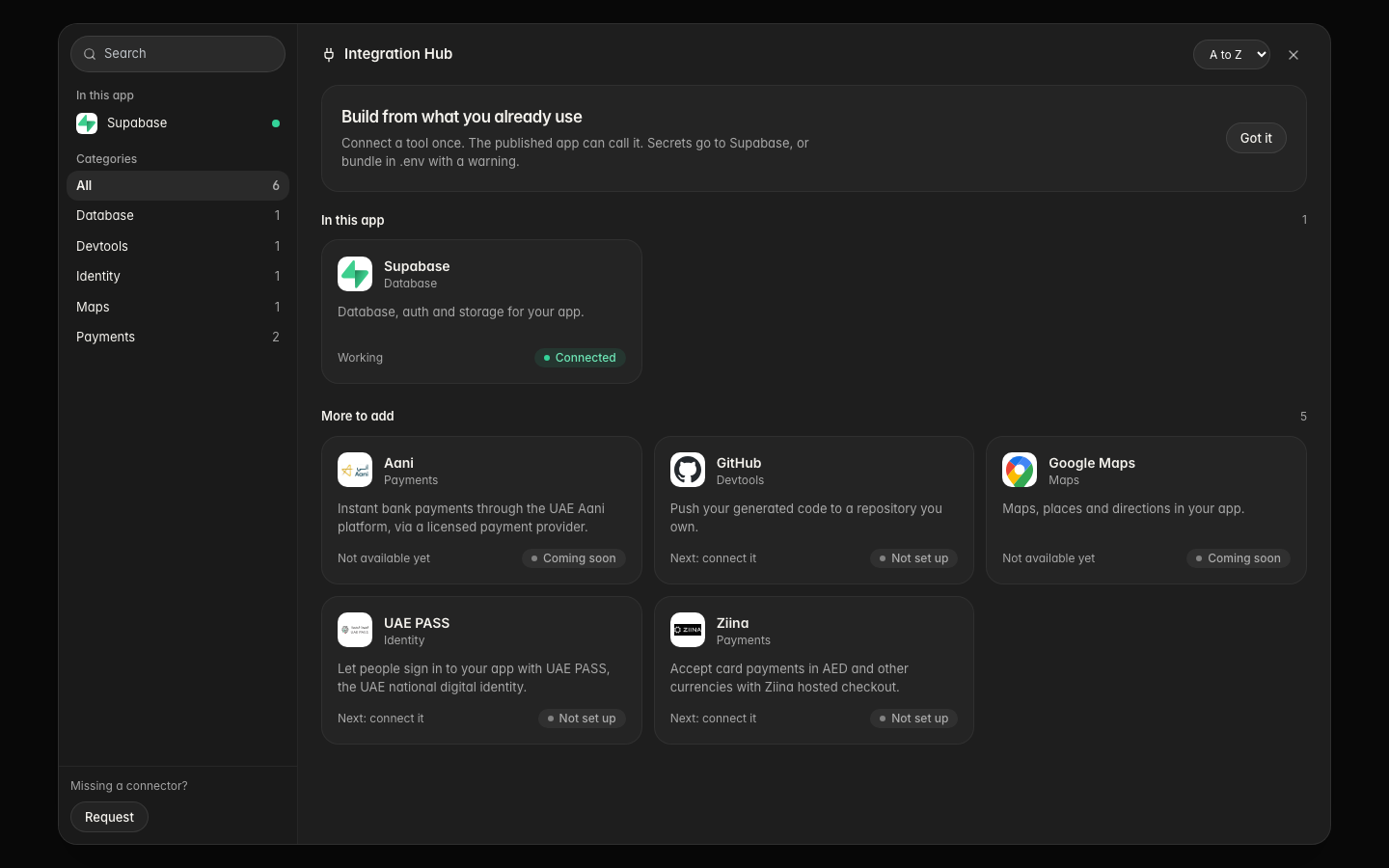
These services already appear in the catalog with a Coming soon badge. You can't connect them yet: Stripe, Aani, Gmail, Resend, Twilio, Unifonic, WhatsApp Business, Google Maps, Makani, Google Drive, Emirates Post, and Jeebly / Fetchr.
Need a service that isn't listed? Select Request under Missing a connector? at the bottom of the catalog.
Open the Integration Hub
The Integration Hub is available once your app's preview is ready.
Open the app you want to connect a service to.
Select Settings below the chat box, then Integration Hub. You can also find Integration Hub under Integrations in your project's settings.
Select Add an integration to open the catalog, or Manage on a service that's already connected.
On mobile, open Settings and select Integration Hub.
Find a service in the catalog
The catalog lists every service in one place. Search by name, or pick a category on the left. In this app shows what's already connected, and More to add shows what you can connect next. Each card shows the service's status and its next step, for example Next: connect it.
How connecting works
Every service follows one of two paths, depending on whether it has a test mode.
- Guided setup
- Quick setup
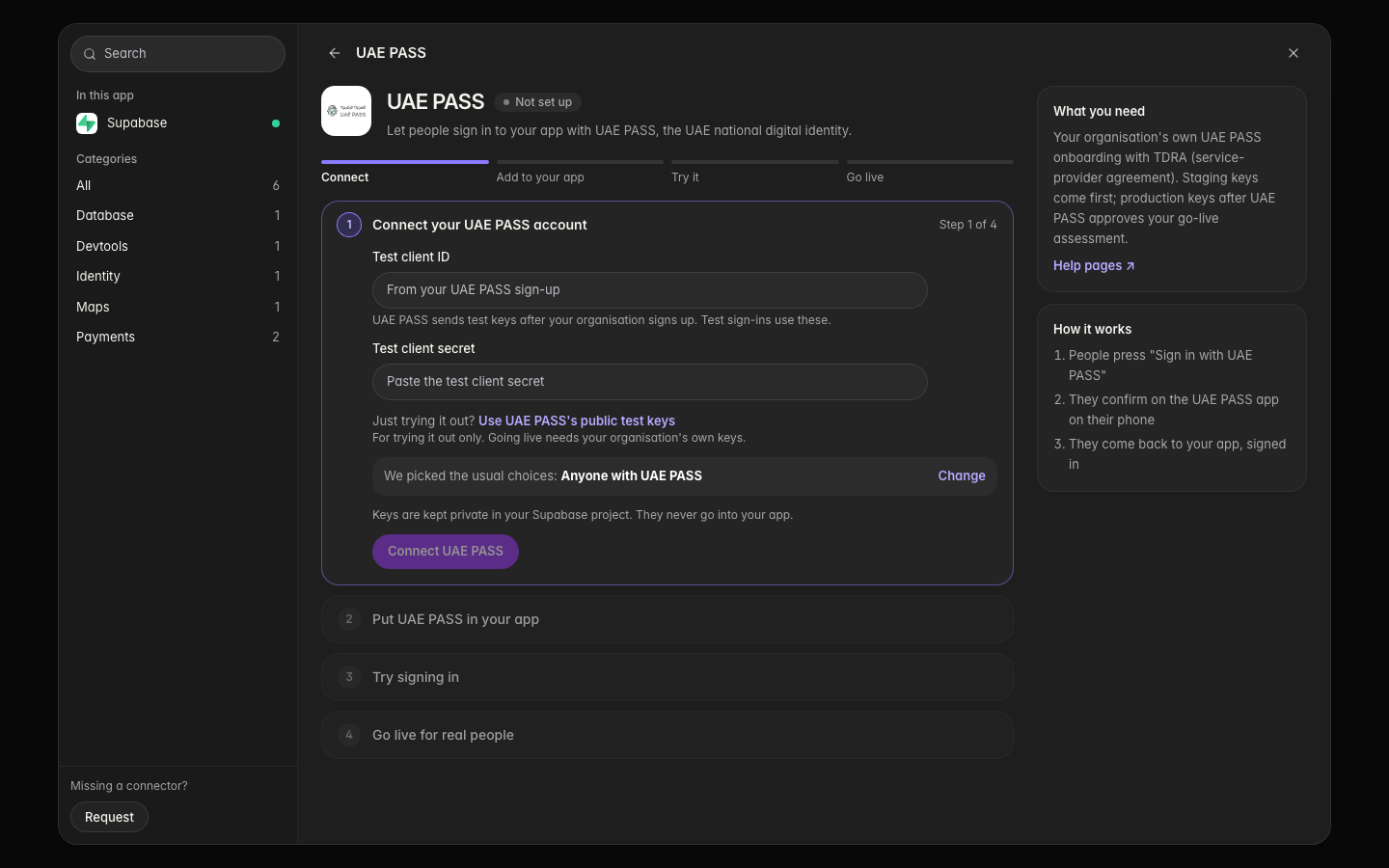
For services that handle money or identity: Ziina and UAE PASS. You start in test mode and switch to live keys at the end.
Paste your keys from the service. Start with its test keys.
Chat adds the buttons and pages your app needs. You review the change like any other edit.
Make a test payment or a test sign-in in the preview. No real money moves.
Follow the short checklist, then switch to your live keys.
For AI services: ChatGPT and Gemini. There's no test mode: the feature works as soon as it's in your app.
The Hub opens a small Connect window. Paste the key from your OpenAI or Google account.
Under What should the AI do?, describe the feature or pick one of the ideas, then select Send to chat.
Chat builds the feature into your pages. Ask it something in the preview. The Hub shows Working once it has answered.
Your AI provider bills you for every answer your app gives. Set a monthly spending limit in your OpenAI or Google account before you share the app.
Your app needs a backend first
Most connectors run through small server functions in your app's backend, so private keys never reach your visitors' browsers. If your app doesn't have a backend yet, the Hub asks you to set up Database & Backend first.
Sign in to Supabase and pick the project for this app. Everything after that runs by itself, and the Hub takes you back to the service you were connecting.
Database & Backend is powered by Supabase and lives in your own Supabase account. See Database & Backend.
Where your keys are kept
- You enter keys only in the Integration Hub, never in chat.
- TatbiQ saves each key once for your workspace, encrypted, so you can use it in your other apps too.
- Your app's backend holds the key and talks to the service. Keys don't go into your app's code or its GitHub copy.
- Keys the Hub looks after appear in App keys, under Looked after by your integrations.
Never paste an API key into the chat. When chat needs a key, it shows a Connect card that opens the Hub for you.
For the full details, see Keys and security.
Use the Hub from chat
Chat knows which services are connected to your app. Ask for something like "Add a pay button to my cart" and chat suggests the right service, asks a few setup questions, then shows a Connect card. Chat can also show cards to remove a service, change its settings, or replace its key. See Integrations in chat.
Remove a service
Select Manage on the service, then Remove from this app…. TatbiQ shows what it will remove and what it keeps before anything changes. Files you edited are always kept, and your key stays saved for your other apps.
To remove a key from every app that uses it, select Delete key… instead. See Connect and manage.
FAQ
Can I use one key in several apps?
Yes. Your key is saved for your workspace, so you can connect it in any app that needs it. Deleting the key removes the service from every app that uses it.
Who bills me for the service?
The service does, on your own account: Ziina charges its payment fees, and OpenAI or Google charge for AI usage. Connecting a service is free. Adding it to your pages is a chat edit, so it uses credits like any other edit. See How credits work.
Does the Integration Hub work in Arabic?
Yes. The Hub, every setup step, and the messages it shows are fully available in Arabic.
The service I need isn't listed. What can I do?
Select Request at the bottom of the catalog so we know you need it. In the meantime, you can ask chat to connect another service and add its keys in App keys.
Why can't I connect a service?
Check three things: your app's preview is ready, the service isn't marked Coming soon, and your app has Database & Backend set up. The Hub offers to set up the backend for you when it's missing.