GitHub
Keep a copy of your app's code somewhere you own. TatbiQ makes a private repository, a folder for your code, in your GitHub account, and every new version you save in History is synced there.
| Why | |
|---|---|
| Back it up | A safe copy outside TatbiQ |
| Own your code | It lives in your own account |
| Work with a developer | Give them access on GitHub |
Before you start
A free GitHub account. You can create one while connecting. See GitHub's Creating an account.
Open GitHub
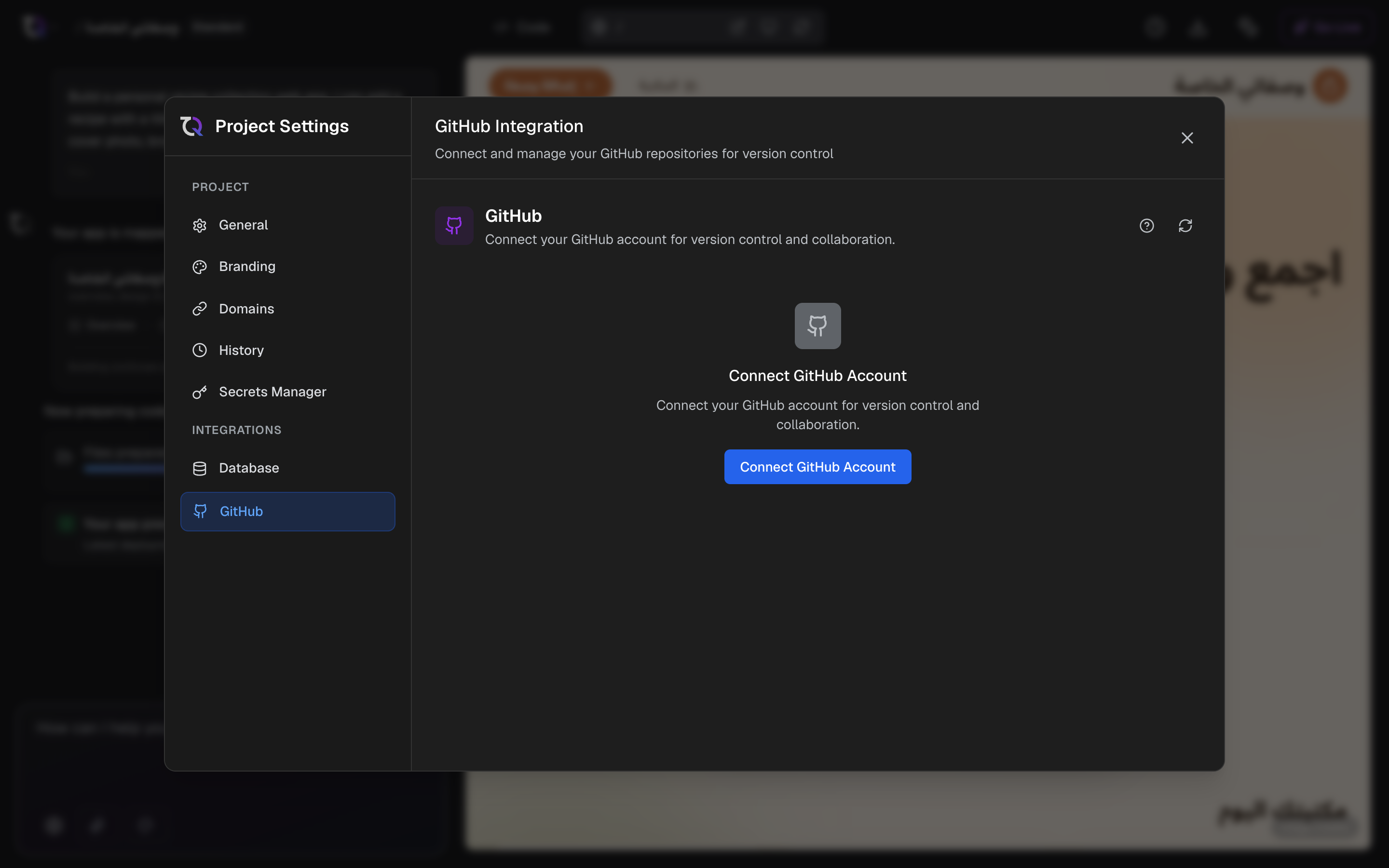
Open Settings, then Integration Hub, and select GitHub. In the Hub's catalog, GitHub shows Set up GitHub, or Open GitHub settings once it's set up.
Set it up
Select Connect GitHub. You sign in on github.com, then come back here.
Under GitHub account, pick Your personal account or A team you belong to, name the repository, and select Create private repository. Only you and people you invite can see it.
Select Sync now. It usually takes under a minute. If your app has no saved version yet, the first one syncs by itself once it's saved in History.
When it's done, the page shows Your code on GitHub with Up to date.
How syncing works
With Sync new versions automatically on, every new version saved in History is synced. It's on by default; turn it off on the Settings tab. You can always select Sync now.
Changes made on GitHub don't come back into TatbiQ. Keep making changes here, in chat.
| Status | What it means |
|---|---|
| Up to date | GitHub has your newest saved version. |
| Newer version waiting | A saved version isn't on GitHub yet. It syncs by itself shortly, or select Sync now. |
| Last sync didn't finish | Your app is fine, and GitHub still has the version before it. Select Sync now to try again. |
| Sign in again | Select Sign in to GitHub again. Your app and the repository are fine. |
See Checkpoints for how versions are saved in History.
Shortcuts
The Overview tab has shortcuts that open github.com. You need to be signed in to GitHub with access to the repository.
| Shortcut | What it does |
|---|---|
| Share with a developer | Invite them to collaborate in GitHub. See GitHub's Inviting collaborators. |
| Download your code | A ZIP of the newest synced version. See GitHub's Downloading source code archives. |
| All saved versions | Every synced version, by date. |
Change the repository
On the Settings tab, select Change next to Repository on GitHub. Create a new private repository, which starts with your newest version, or go back to a repository this app used before, which carries on where it left off. The old repository and its history stay on GitHub.
Stop syncing
On the Settings tab, select Stop under Stop syncing to GitHub, then confirm. New versions are no longer synced. The repository and all its versions stay on GitHub, and your GitHub account stays for your other apps. You can start again any time with the same repository or a new one.
GitHub accounts in your workspace
Your whole workspace shares its GitHub accounts, so every app can sync to them. They're listed on the Settings tab under GitHub accounts in this workspace, with + Add a GitHub account and Remove.
Removing an account stops syncing for every app that uses it. Everything on GitHub stays. It only removes the account from TatbiQ: to also take back TatbiQ's access, remove TatbiQ in that account's GitHub settings. See GitHub's Reviewing and revoking GitHub Apps.
Troubleshooting
| You see | What to do |
|---|---|
| "<owner>/<name> already exists and holds other code." | TatbiQ never syncs over someone else's code. Pick another name. |
| Last sync didn't finish | Select What went wrong for details, then Sync now. |
| Newer version waiting for a while | Automatic sync is off. Select Sync now, or Turn on automatic sync. |
| Sign in again | Select Sign in to GitHub again. |
| A team doesn't appear under GitHub account | The team may need to allow TatbiQ on GitHub. Ask a team owner, then connect again. |
FAQ
Is my repository public?
No. It's always private: only you and people you invite can see it.
Can I edit code on GitHub and bring it back?
No. Syncing only goes one way. Keep making changes in chat.
Does stopping or removing delete my code?
No. The repository and its history always stay on GitHub.
Can a developer work on my app?
They can read and copy the code on GitHub. Share it with Share with a developer. Their changes on GitHub don't come back into TatbiQ.