Gemini
Add AI answers and writing to your app with your own Google Gemini API key. People ask a question in your app, your app's own server asks Gemini with your key, and the answer appears word by word.
What you can build
| Feature | Ask chat |
|---|---|
| A chatbot that knows your app | "Build a context-aware chatbot" |
| A services assistant | "Add a Gemini assistant that answers questions about my services" |
| Writing help | "Use Google Gemini to write product descriptions for my shop" |
| Summaries | "Summarise each booking request with Gemini" |
Gemini powers features inside your app. It isn't for text you write once, such as your About page: ask chat to write that directly.
Before you start
- Your app's backend, set up in Database & Backend. See Your app needs a backend first.
- A Google AI Studio project with billing on, called the paid tier. On the paid tier, Google doesn't use your visitors' questions to improve its products. See Google's Billing and pricing.
- An app that isn't meant for people under 18. Google's Gemini API terms don't allow it in apps for them.
Get your API key
In Google AI Studio, open Projects and create a project. Keeping one app per project keeps its costs and key separate.
On Projects, select Set up billing for that project. Google asks you to link a billing account and buy at least $5 of credit. Answers are paid from that credit.
On the Spend page, under Monthly spend cap, select Edit spend cap and enter an amount. See Google's Spend caps.
Open API Keys, select Create API key and choose the project you just made.
Google's API key guide shows where keys are created. The Hub links to it as How to get your Google AI Studio key.
Add an AI feature
For example "Build a context-aware chatbot". If you haven't named an AI, chat asks Which AI should power this? Pick Gemini.
Chat shows What should the AI do in your app, with three ideas and Write your own. For a chat feature it also asks Should the chatbot remember the conversation?
The Connect Gemini window opens. Paste your Gemini API key. Under Please confirm, tick all three: billing is on (paid tier), the project has a spend cap, and your app is not meant for people under 18.
The window shows Connected. Chat is building it now. When chat finishes, a card says your feature is ready, with Try it in the preview.
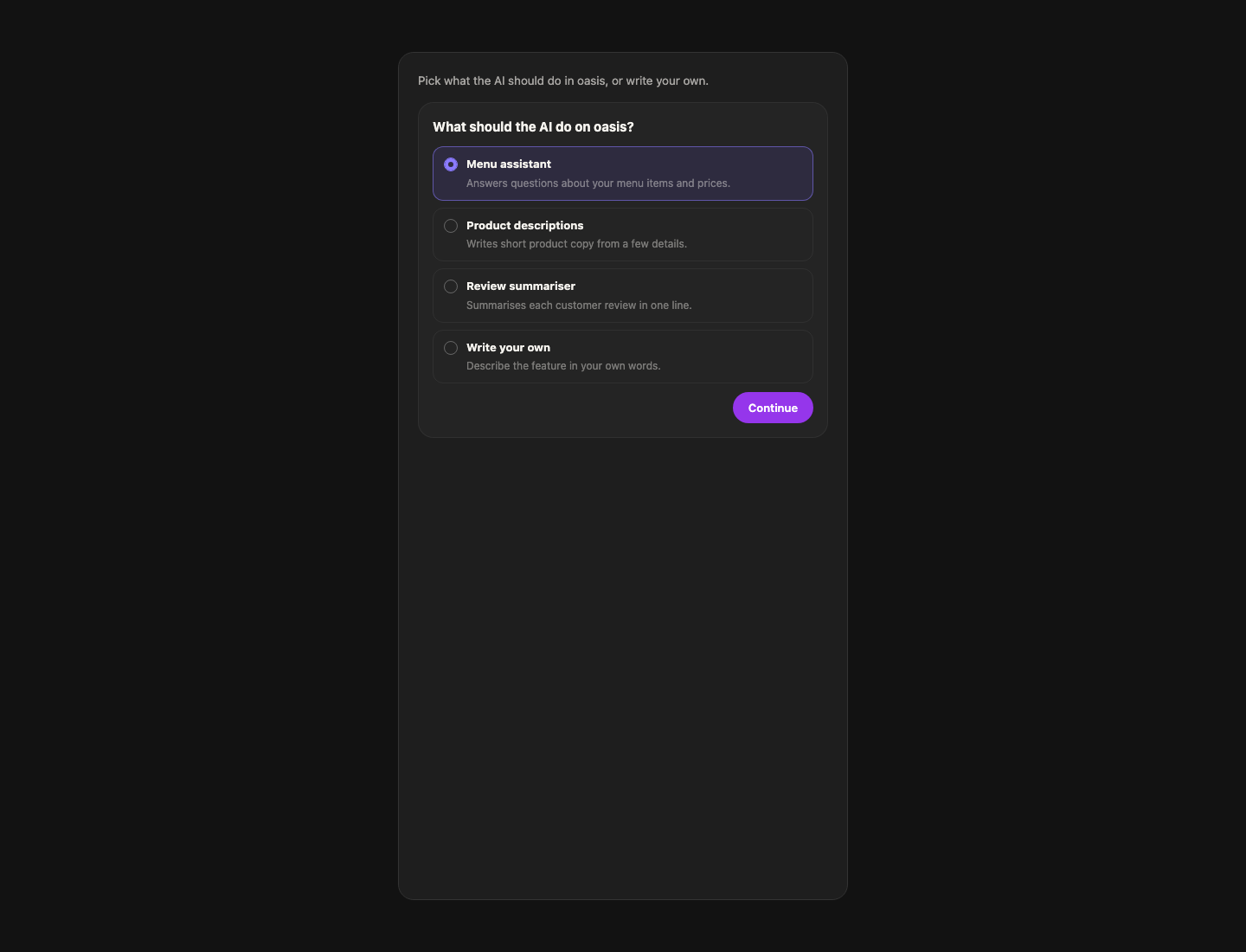
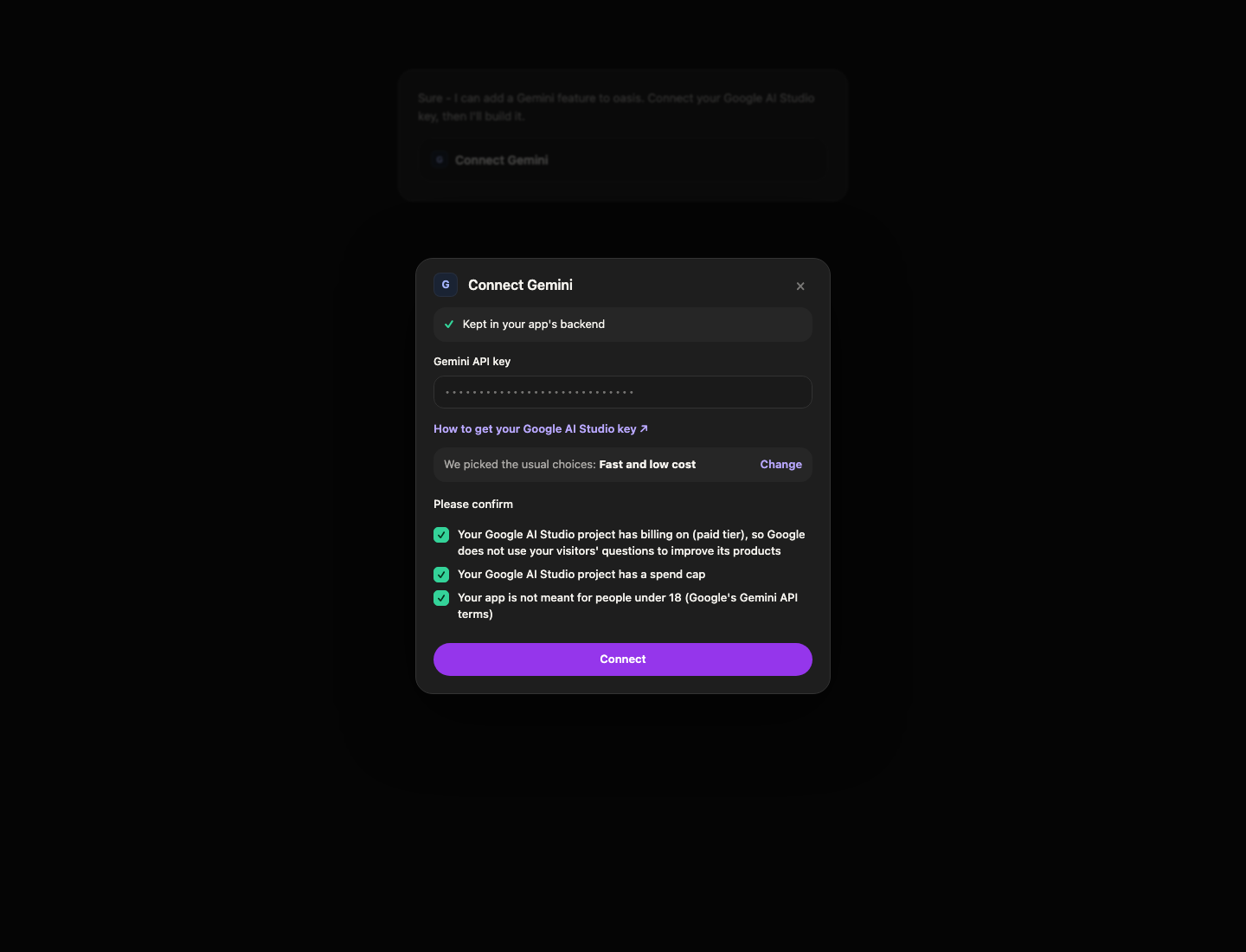
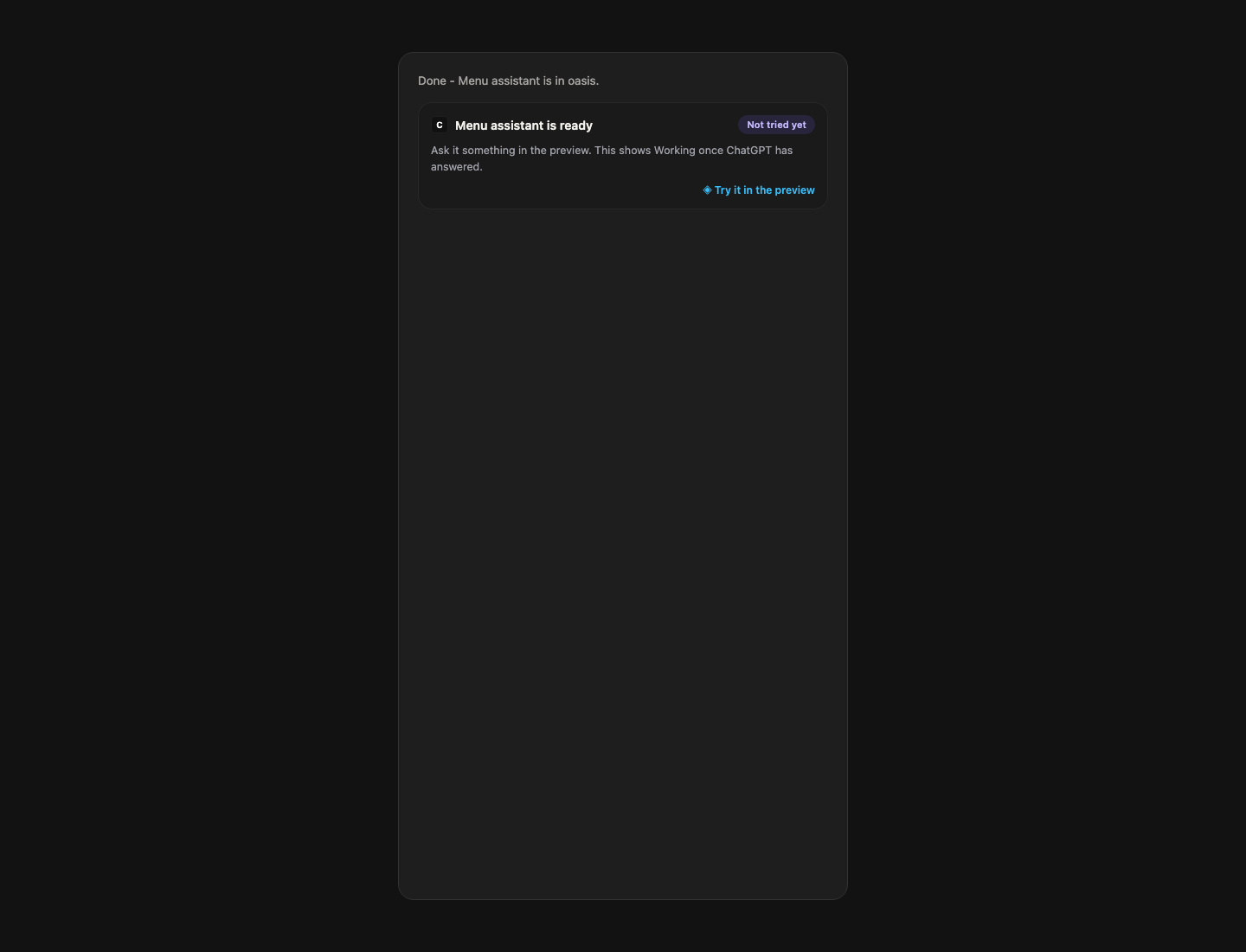
You paste the key once. Your next AI features in this app reuse it. See Integrations in chat for every card chat shows.
You can also start from the Hub: open Gemini, describe the feature under What should the AI do?, and select Send to chat.
Your choices
The Connect window shows We picked the usual choices. Select Change to adjust them. You can change them later under Settings without rebuilding your app.
| Question | Options |
|---|---|
| Which Gemini models may this app use? | Fast and low cost (the usual choice) or Most capable, which costs more. See Google's models. |
| Only signed-in people can use AI? | No is the usual choice. Yes needs sign-in in your app and stops strangers using up your Google credit. |
| Should the chatbot remember the conversation? | No memory, Remember this visit (the usual choice, kept in the visitor's browser), or Remember across visits (saved in your app's database for people who are signed in). Remembering uses more tokens. |
Try it
Open the preview in a new tab and ask the AI a question. The answer appears word by word. In the Hub, Gemini then shows Working in your app.
Usage and costs
Open Gemini in the Hub to see Usage, "Last 7 days, from this app's own log": requests, input tokens, output tokens, and how many were busy (limited).
| Who pays | Google takes every answer from your prepaid credit. TatbiQ adds no fees. Adding a feature is a chat edit and uses credits. |
| Per visitor | Up to 20 answers every 10 minutes. See AI usage limits. |
| Your cap | Your project's spend cap. When your credit runs out, Gemini stops answering until you add more. |
Manage and remove
Once Gemini is in your app, its page has two tabs:
- Overview, under In your app: its status, the files it uses, Usage, and Add another AI feature... to describe a new one and send it to chat.
- Settings: your key, and your choices.
Replace your key or remove Gemini the same way as any service. See Connect and manage. Removing Gemini keeps its usage log in your database.
Troubleshooting
| You see | What to do |
|---|---|
| "Gemini stopped requests: the spend limit or credit ran out" | Your key is fine. In Google AI Studio, buy credit on the Billing page or raise your spend cap, then check again. |
| "Gemini stopped accepting your keys. Paste them again to fix it." | Create a new key in Google AI Studio. In the Hub, select Fix it and paste it. |
| Visitors see "The AI is busy right now. Please try again in a moment." | That visitor reached 20 answers in 10 minutes. It clears by itself. |
| Visitors see "Please sign in to use the AI." | You chose Yes for Only signed-in people can use AI?. Change it under Settings if you didn't mean to. |
| "This AI model is not enabled for this app." | The feature asks for a model outside your choice. Pick Most capable under Which Gemini models may this app use? |
| "AI is not enabled for this website address yet." | Your app has a new address, such as a new domain. Open Settings, then Advanced, and select Set up again. |
FAQ
Is there a test mode?
No. Gemini has no test mode, so the feature is live as soon as chat adds it. Set a spend cap before you share your app.
Can I use Google's free tier?
No. On the free tier, Google may use your visitors' questions to improve its products, and its limits are low. Turn on billing for the project.
Can my app be for children or teenagers?
No. Google's Gemini API terms don't allow it in apps meant for, or likely used by, people under 18.
Does TatbiQ see or keep what people ask?
No. The server function logs only counts and token numbers. Messages are saved only if you chose Remember across visits, and then in your app's own database.
Can I add more than one AI feature?
Yes. Ask chat, or use Add another AI feature... in the Hub. They all use the same key.