Connect and manage
Once a service is connected, you manage it from the Integration Hub. This page explains what each status means, how to take a service from test mode to live, how to change its settings or replace its key, and how to remove it without losing your data.
To connect a service for the first time, see Integration Hub.
Your key and your apps
Every service has two parts:
- Your key belongs to your workspace. You paste it once, and any of your apps can use it.
- Its setup in each app is separate: the choices you made, its status, and whether it's in test mode or live.
So most changes affect only the app you're in. Two actions reach every app that uses the key:
| Action | This app | Your other apps |
|---|---|---|
| Change its settings | Changes | No change |
| Go live or Back to test mode | Changes | No change |
| Remove from this app… | Removed | No change. Your key stays saved. |
| Replace key | Gets the new key | Get the new key |
| Delete key… | Removed | Removed from every app that uses it |
Read the status
Each service in the Hub shows a short badge and a line that tells you what to do next.
| Badge | What it means | What the Hub tells you |
|---|---|---|
| Not set up | Not added to this app yet. Your key may already be saved from another app. | Next: connect it |
| Setting up | Connected to this app, but your pages don't use it yet. | Next: add it to your pages. While chat works: Chat is adding it to your pages. |
| Test mode | In your pages, in test mode. Nothing real happens yet. | Next: try a test payment, or Next: try a test sign-in |
| Tested | A test worked. It's ready to go live. | Next: go live |
| Live | Real people can use it. | Working for everyone |
| Not tried yet | A quick service, such as ChatGPT or Gemini, is in your pages, but it hasn't answered since chat last built it. Quick services have no test mode. | Next: try it in the preview |
| Working | A quick service is in your pages and has answered. | Working |
| Needs a fix | Something stopped it working. Often the service rejected your key. | Fix: paste your keys again, or Fix: open it to see what went wrong |
| Removing | It's out of your pages, but its server code isn't deleted yet. | Next: finish removing it |
Try it and go live
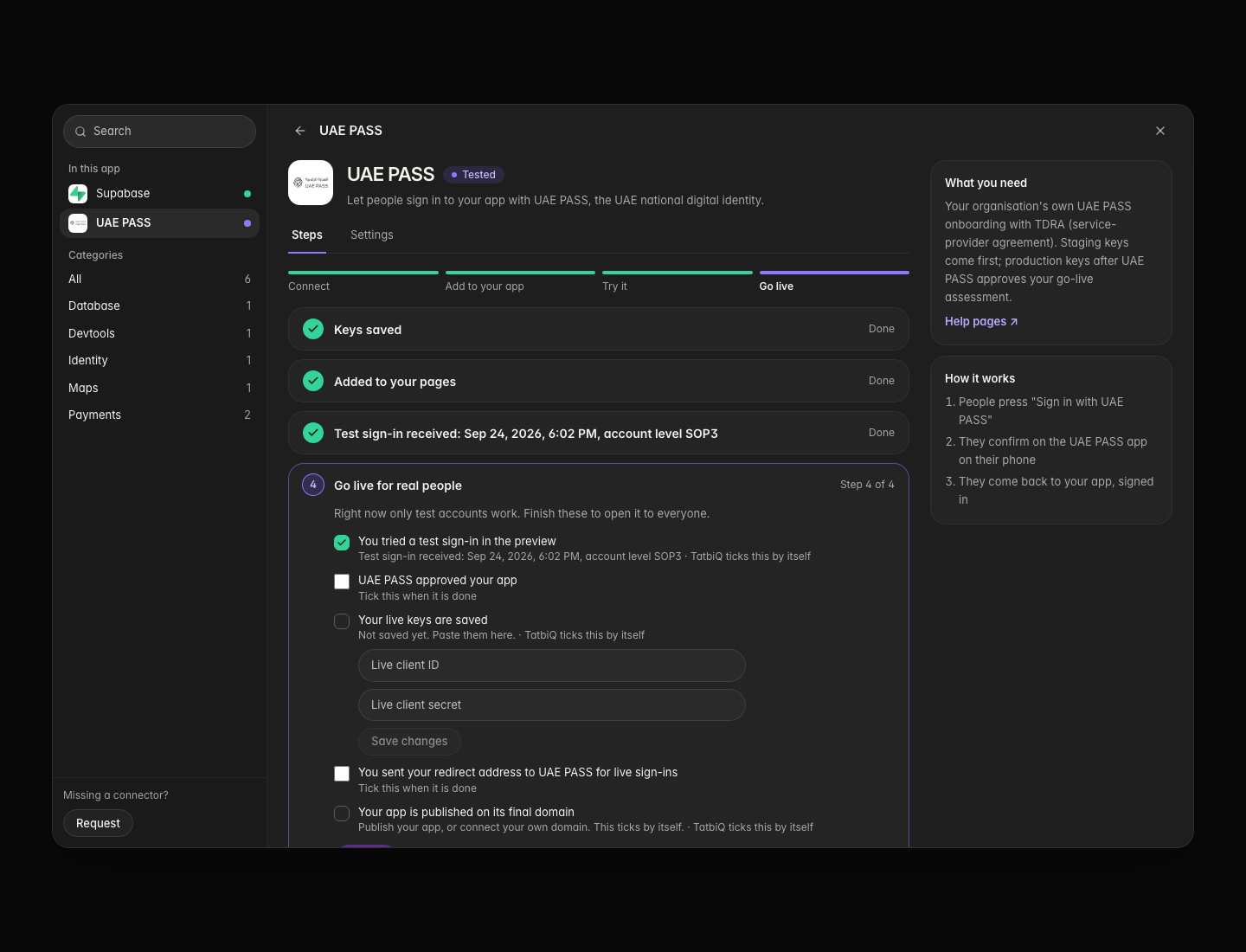
Guided services, such as Ziina and UAE PASS, start in test mode: nothing real moves until you go live. Open the service with Manage to see its four steps.
Make a test payment or a test sign-in in your app's preview. The step ticks by itself once it goes through. To check sooner, select Check now.
Some items tick by themselves, such as your test and publishing your app. Tick the rest yourself once they're done, such as the service approving your app. Paste your live keys where the checklist asks for them.
Test mode turns off right away. Your app isn't rebuilt, and going live doesn't use credits.
A live payment service shows Waiting for your first live payment until a real payment arrives.
Need to pause real payments or sign-ins? Open the service and select Back to test mode. It also takes effect right away.
Quick services
ChatGPT and Gemini have no test mode, and every answer is billed to your own AI account. Once chat adds one to your pages, it shows Not tried yet. Ask it something in the preview, and it shows Working once it has answered. Each time chat changes the feature, it goes back to Not tried yet until it answers again. Set a spending limit with your AI provider before you share your app.
Change a service's settings
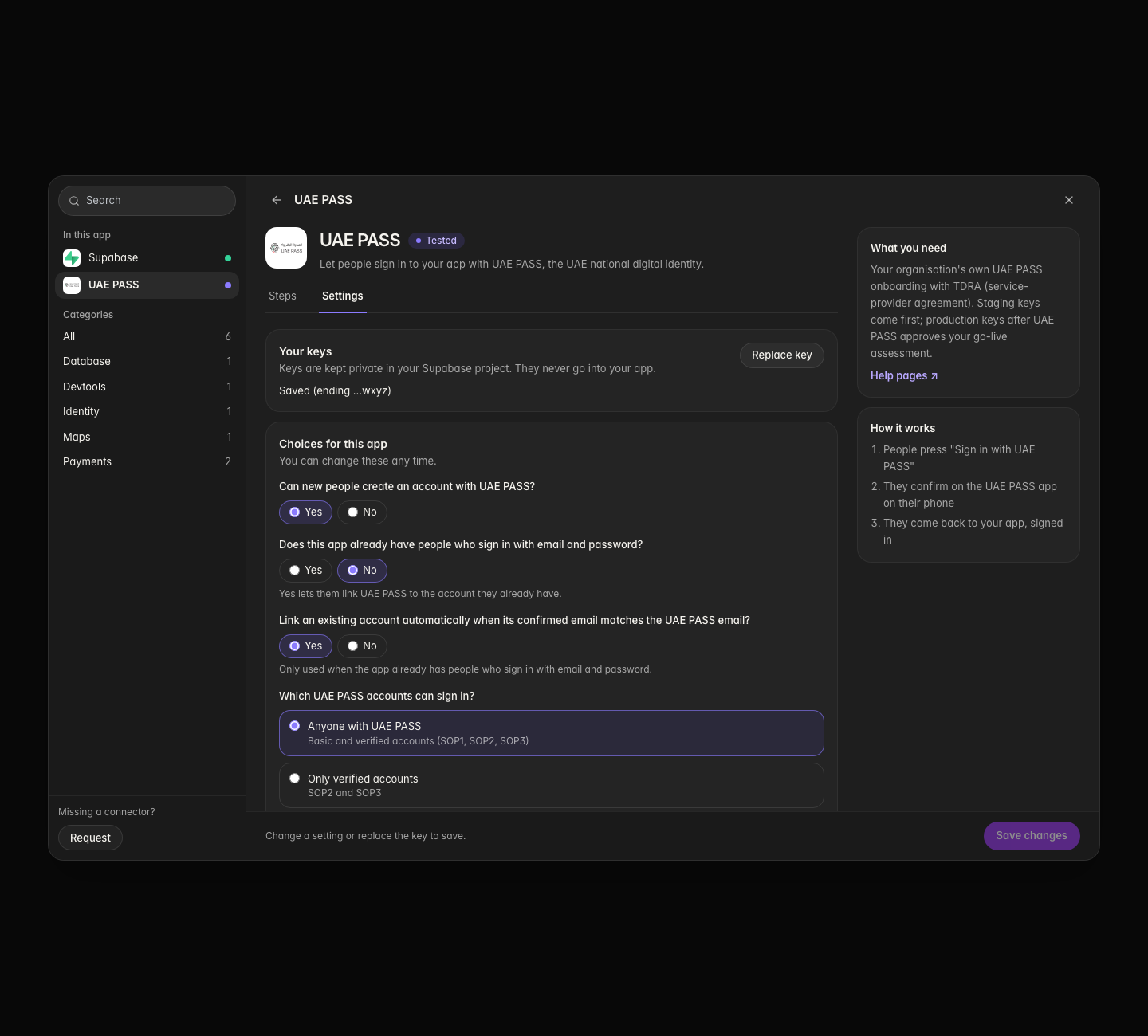
Select Manage on the service, then the Settings tab.
Under Choices for this app, change what you need, then select Save changes.
Your app's server uses the new settings straight away. If your pages also need to change, the Hub lists what still uses the old settings and offers Update my pages, which asks chat to update them. Like any chat edit, that uses credits.
Replace your key
Select Manage, then Settings. Under Your key, select Replace key.
Fill in only what changes. Fields you leave blank keep their saved value. Then select Save changes.
TatbiQ sends the new key to every app that uses it. If one app can't be updated, that app shows Needs a fix; the new key is still saved.
When a service needs a fix
If the service stops accepting your key, the Hub shows Needs a fix with a message such as "UAE PASS stopped accepting your keys. Paste them again to fix it." Select Fix, paste your keys, then select Check again. You can't go live while a service needs a fix.
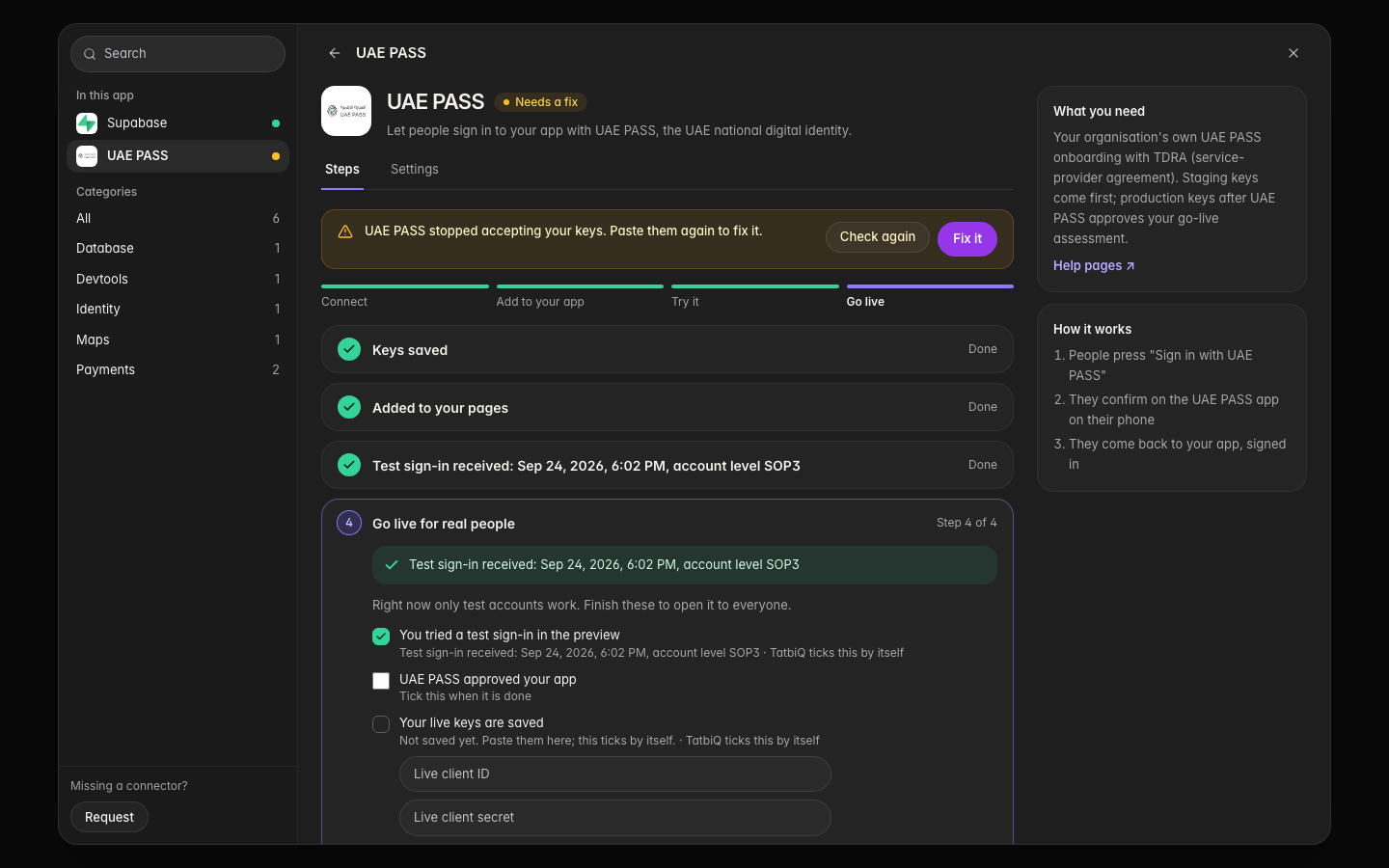
If something else stopped working, open Settings, then Advanced, and select Set up again. This sets the service up again from the start.
Remove a service from this app
Select Manage, then Settings, then Remove from this app…. Nothing changes yet.
The Hub shows what will happen: chat takes the service out of your pages, then TatbiQ deletes its server code and settings from this app. Open What is deleted and kept for the full list.
If your pages use the service, the button asks chat to take it out first (for payments: Take payments out of my pages). That's a chat edit and uses credits. If your pages don't use it, select Remove followed by the service's name.
What is deleted and kept
| Deleted from this app | Always kept |
|---|---|
| The service's server code in your app's database | Your key, for your other apps |
| This app's copy of the key, and its private settings | Records the service saved in your database, with their full history |
| Its scheduled background checks | Files you changed |
| Helper files TatbiQ added that your pages no longer use | Helper files your pages still use |
| The settings TatbiQ added to your app | Everything else in your app and its database |
Remove without changing my pages skips the chat step. Your pages keep the feature, such as a pay button, but it stops working until you change them.
If removal doesn't finish
If TatbiQ can't reach your app's database, it stops before deleting anything on the server, and the service shows Removing. Your pages no longer use it and your key stays saved. Open the service and select Finish removing (or Try again), or select Put it back in my pages to keep it.
Delete your key
Deleting your key removes the service from every app that uses it.
Select Manage, then Settings. Under Your key, select Delete key….
The Hub lists every app that uses the key and whether its pages use the service.
Select Delete key and remove from the number of apps shown. TatbiQ removes the service from each app, then deletes the key.
Pages that used the service keep the feature, but it stops working until you change them. If one app can't be cleaned up, TatbiQ keeps your key so you can try again.
Deleting the key in TatbiQ doesn't cancel it with the service. To stop it working everywhere, also delete it in the service's own dashboard.
FAQ
Does going live rebuild my app?
No. Going live and going back to test mode take effect right away, without a rebuild and without using credits.
Does removing a service delete my data?
No. Records the service saved in your app's database are kept with their full history, and so are files you changed.
I replaced my key. Why does one app say Needs a fix?
TatbiQ couldn't send the new key to that app, often because its database wasn't reachable. Open the service in that app to see what went wrong.
Can I go back to test mode after going live?
Yes. Open the service and select Back to test mode. Real payments or sign-ins stop right away.