Template Hub
The Template Hub is a gallery of public apps built by the TatbiQ community. Instead of starting from a blank prompt, you can browse what other people have made, preview any app live, and copy one into your own workspace to make it your own.
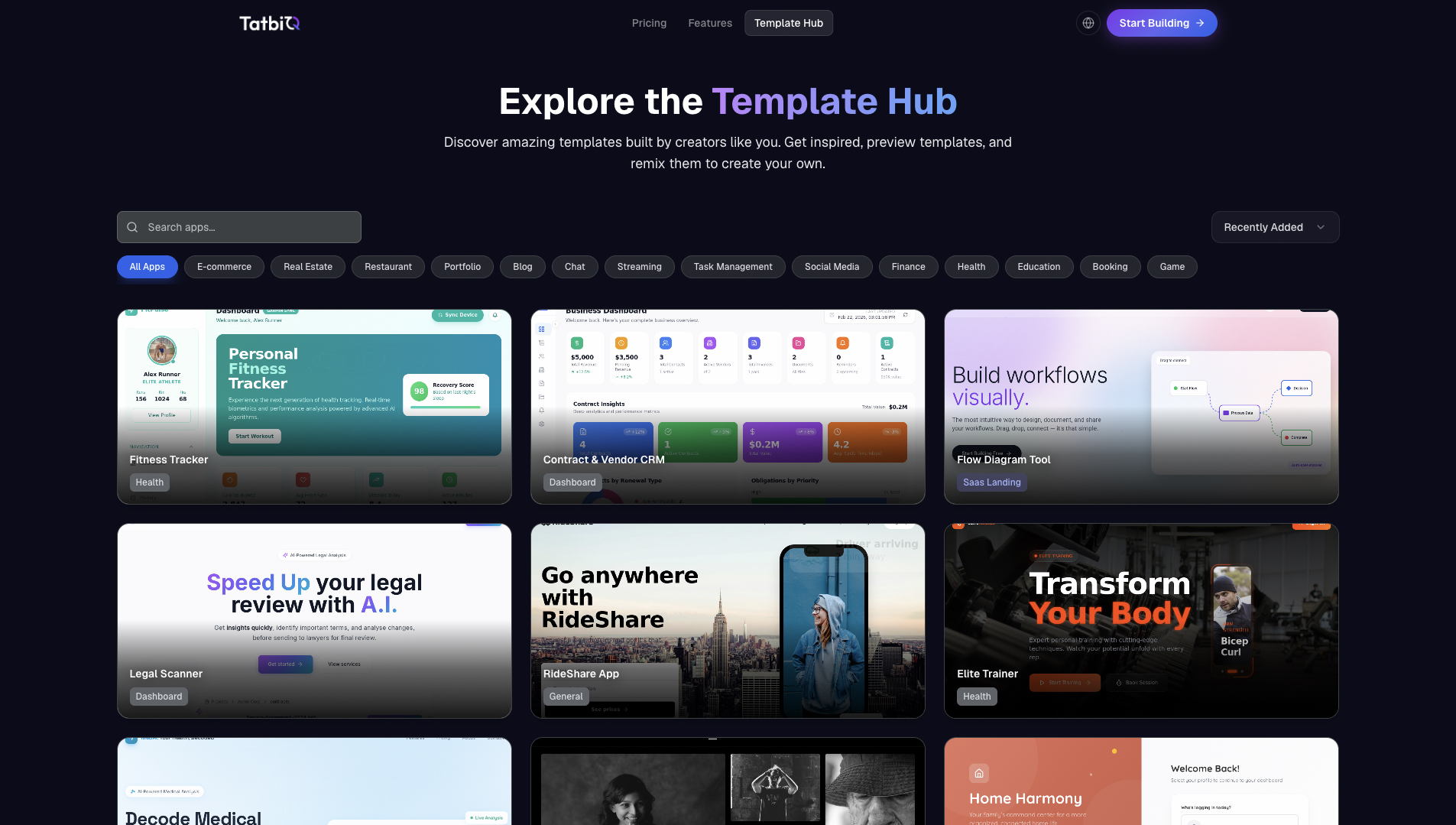
Browse, preview, and reuse a template
Go to Template Hub from the navigation. You land on a gallery of public apps shared by the community.
Use Search apps... to search by keyword, or narrow the gallery with the Sort by and Category filters until you find something close to what you want.
Open a template with View Details, then select Preview App to see it running live before you decide to reuse it.
Select Use Template to create your own editable copy in your workspace. From there you refine it through chat, just like an app you built from a prompt.
After you select Use Template, TatbiQ creates a fresh copy in your workspace. The original stays untouched, so you are free to experiment with your version.
Template Hub vs Popular ideas
These two starting points look similar but work differently:
- Template Hub gives you a complete, already-built app that you preview and copy into your workspace.
- Popular ideas to get you started, on the home page, are pre-filled starter prompts. They give the AI a head start on wording, but the app is still generated from scratch when you select Build.
If you would rather start from a description, see Create your first app.
Share your own app as a template
Your own apps can appear in the Template Hub too. In your project's settings, set Project Visibility to Public - Visible in community gallery. Once an app is public, it shows up in the Template Hub for others to preview and reuse.
Reusing a template creates a new app in your workspace, which uses credits like any other app. To learn how usage works, see How credits work.