Writing good prompts
A prompt is the description you give TatbiQ to build or change your app. The clearer your prompt, the closer the result will be to what you have in mind. This page shows how to write prompts that get good results.
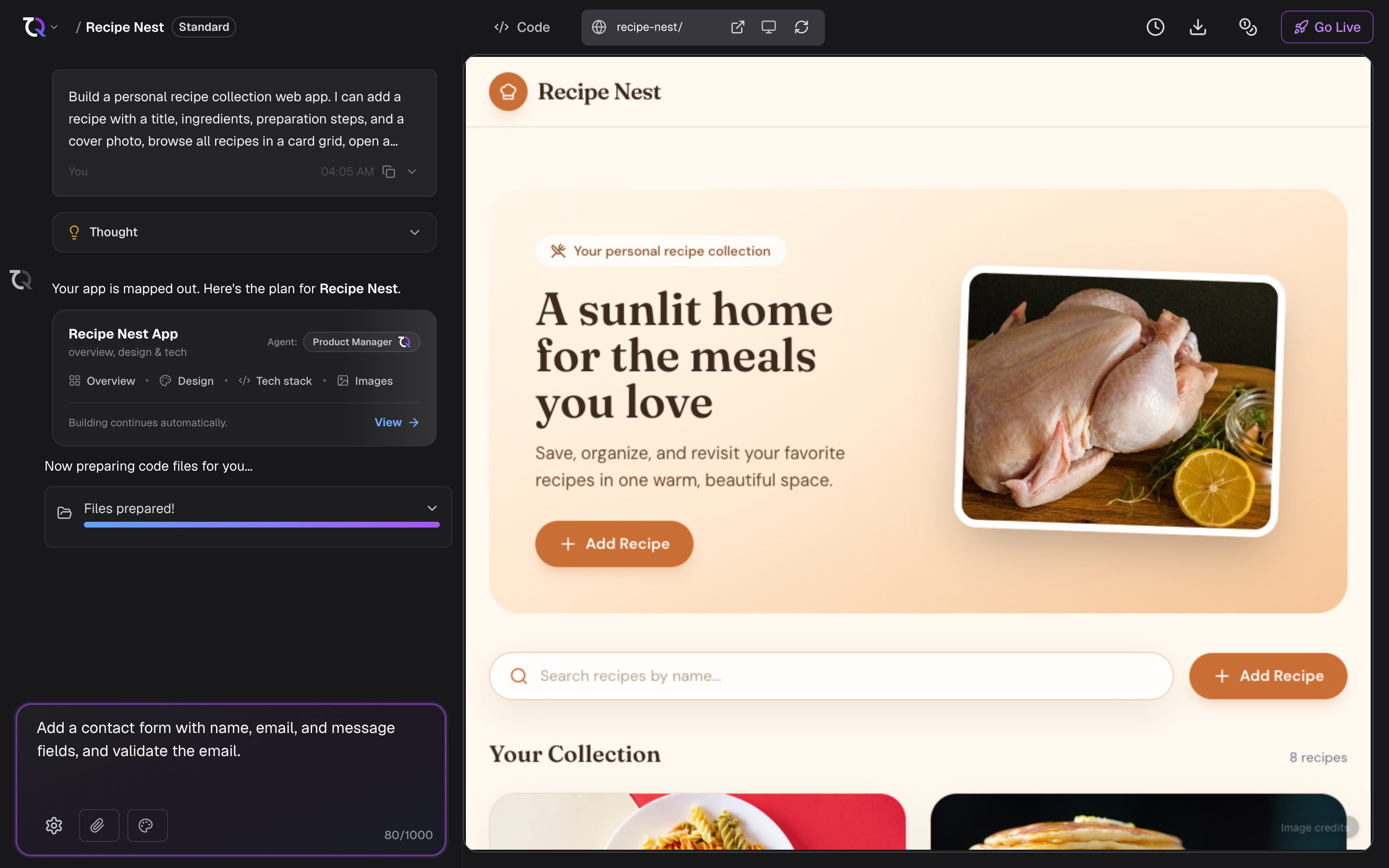
Start with the essentials
A strong first prompt usually answers three questions:
- What is the app? For example, a recipe site, a booking tool, or a personal portfolio.
- Who is it for? The audience shapes the tone, layout, and features.
- What should it do? List the main pages or actions, such as a home page, a contact form, or a list of products.
You do not need to describe everything at once. Get the core idea built first, then refine it step by step in chat.
Be specific where it matters
The more concrete your prompt, the less guessing the AI has to do. When a detail matters to you, spell it out:
- Pages and sections: "a landing page, an about page, and a contact page".
- Content: "a list of five services, each with a title and short description".
- Style and tone: "clean and minimal, with a blue and white color scheme".
- Behavior: "a form that collects a name and email".
If you do not specify a detail, TatbiQ will make a reasonable choice for you, which you can change later.
Write one clear request at a time
When editing, ask for one change (or a small, related set of changes) per message rather than a long list of unrelated requests. This keeps results predictable and makes it easier to see what changed. The same tip applies when you queue follow-up prompts: keep each queued item focused.
| Instead of | Try |
|---|---|
| "Redo everything and add a shop, a blog, a login, and change all the colors." | "Add a blog page with a list of posts." then a follow-up for the next change. |
| "Make it look better." | "Use a warmer color scheme and add more spacing between sections." |
Use examples and references
If you have a clear picture in mind, describe it. You can also attach an image or a Figma design in chat to guide the look and feel. See Editing with AI chat for how attachments work.
Iterate, do not restart
If something is not quite right, describe the adjustment rather than starting over. TatbiQ keeps your project's context, so follow-up prompts build on what is already there. If a change goes the wrong way, you can always return to an earlier version with Checkpoints.
Quick checklist
- Say what the app is and who it is for.
- List the key pages or features.
- Mention the style or tone you want.
- Keep each edit request focused.
- Add an image or Figma reference when it helps.