Prompt queue
When TatbiQ is busy building or editing your app, you do not have to wait for each change to finish before typing the next one. The prompt queue lets you stack follow-up requests so TatbiQ runs them in order when the agent is free.
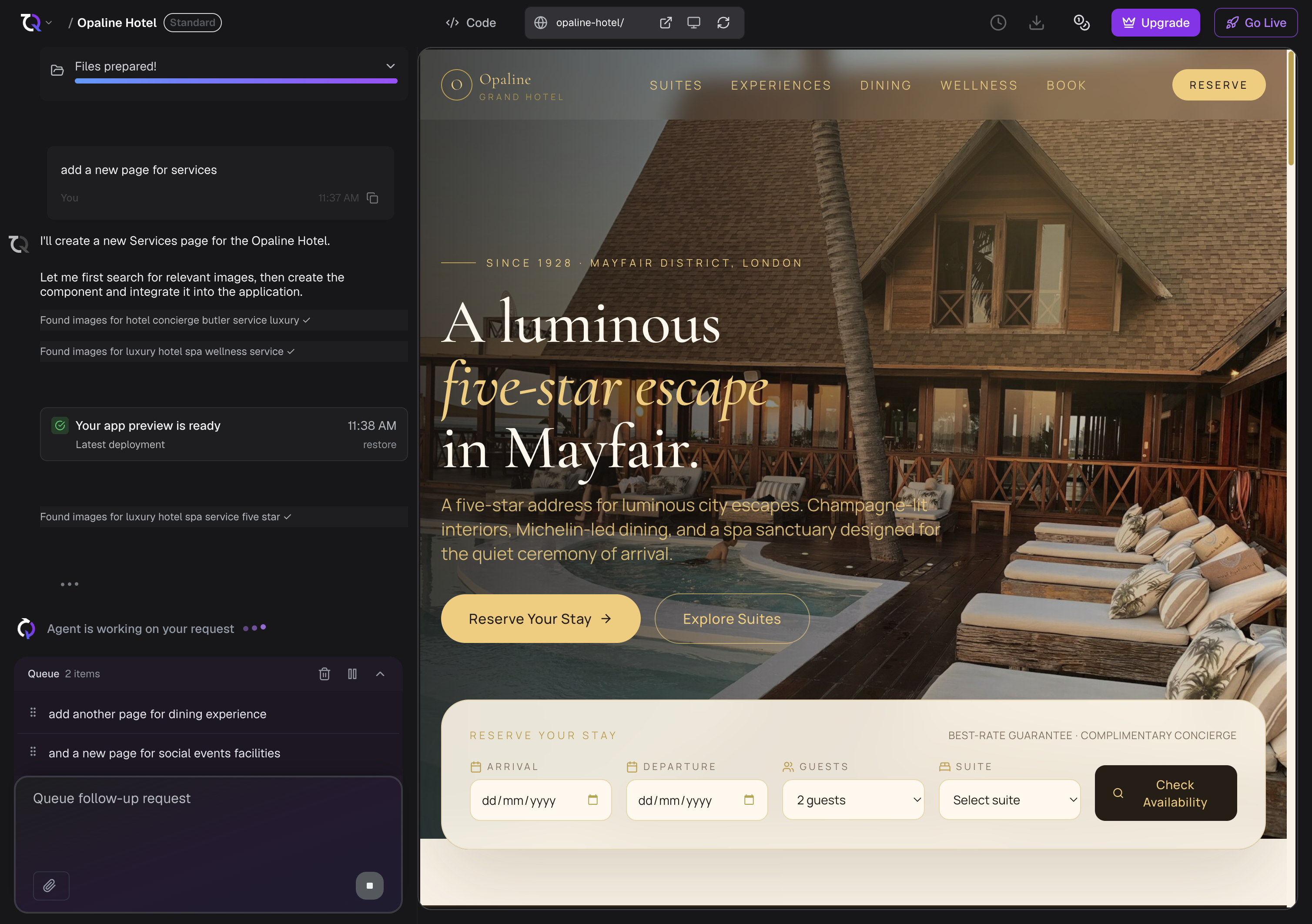
How queuing works
Open your project chat and send a prompt while the agent is already working, or while other prompts are already waiting in the queue.
Your prompt appears in the queue drawer above the composer, with a status such as pending or running.
When the current job finishes, TatbiQ automatically starts the next pending prompt. You do not need to press send again.
Review the preview after each change, or keep adding prompts while the queue runs.
If the agent is idle and the queue is empty, your message still sends immediately, just like a normal chat edit. See Editing with AI chat.
Manage items in the queue
In the queue drawer you can:
- Reorder pending prompts by dragging them.
- Send now to move a pending prompt to the front of the queue.
- Edit the text of a pending or failed prompt. Attachments stay locked after you queue the item.
- Remove a pending prompt you no longer want.
Pause, resume, and clear
- Pause stops TatbiQ from starting the next queued prompt. The current job keeps running.
- Resume lets the queue continue from the next pending item.
- Clear removes pending prompts only. It does not cancel work that is already running.
If you cancel the current job, the queue stays paused so you can decide what to do next.
If a queued prompt fails
When a queued prompt fails, the queue pauses and the failed item stays visible so you can choose:
- Retry to run that prompt again.
- Skip to move past it.
After you retry or skip, use Resume if you want the rest of the queue to continue.
When the AI asks a question
Sometimes the AI asks a clarifying question before continuing. If more prompts are waiting, TatbiQ pauses the queue so your answer is not buried under later requests.
- Reply to the question to continue, and the queue can resume.
- Or press resume if you want to skip unanswered questions and keep going.
Limits
- You can have up to 5 active prompts in the queue at once (pending, starting, or running).
- Message length and attachments follow the same chat limits: up to 1000 characters, up to 5 images, and up to 3 Figma links per prompt.
Queued prompts use the same credit costs as normal chat edits. See Chat edit credit costs.
Tips
- Keep each queued prompt focused on one change so results are easier to review. See Writing good prompts.
- If a run of edits goes the wrong way, restore an earlier version with Checkpoints.
- You can queue prompts during the first build; TatbiQ starts them after that build finishes.