Editing with AI chat
After TatbiQ builds your app, you keep improving it through chat. You describe the change you want in plain language, and the AI updates your app for you. This is how most of your work happens after the first build.
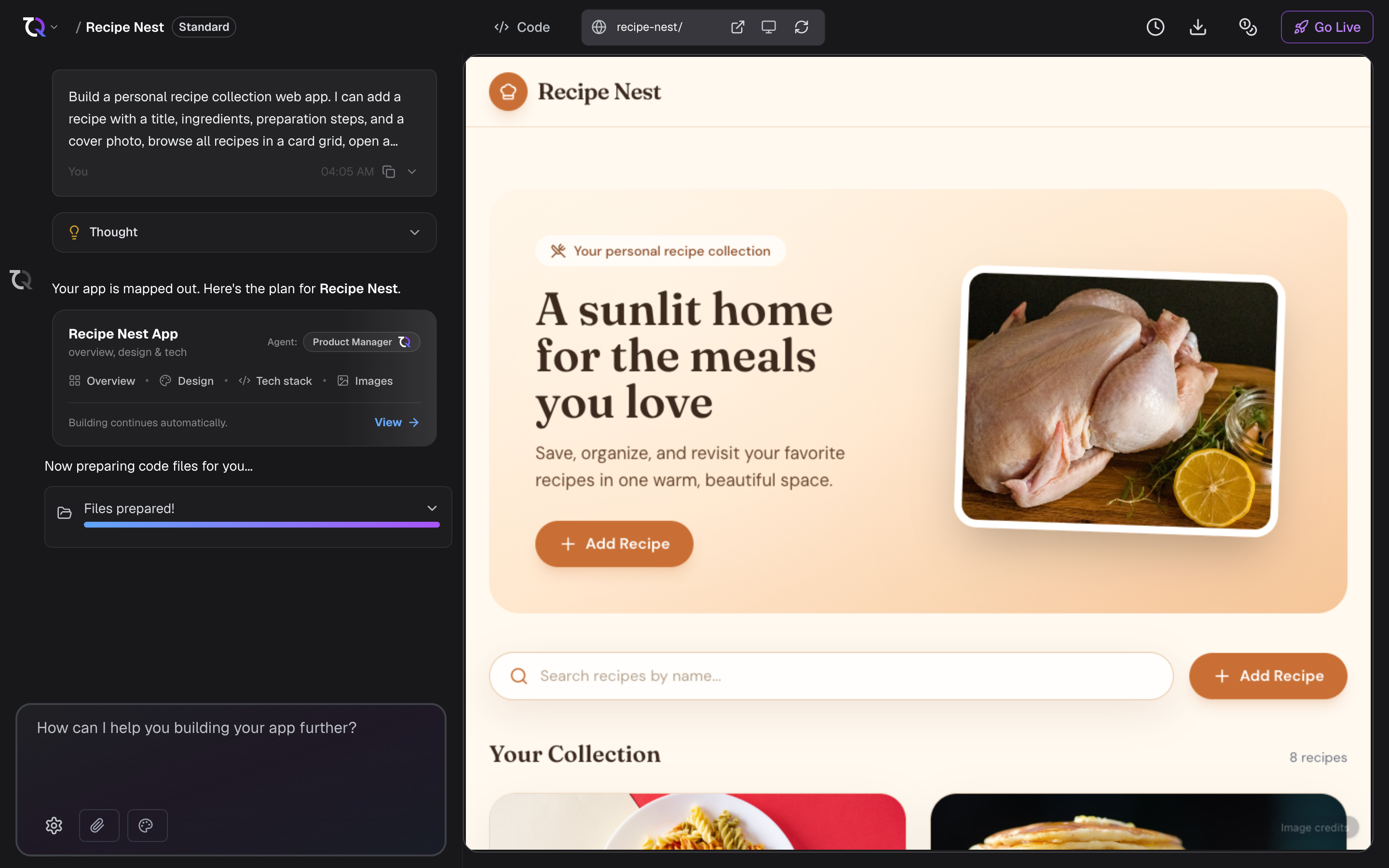
How editing works
Open your project and find the chat panel.
Type what you want to change, for example "add a contact form to the home page".
Send the message. The AI makes the change and updates your app.
Review the result in the live preview and continue with the next request.
Each edit builds on your project's current state, so you can refine it step by step without starting over.
Two kinds of messages
You can use chat in two ways:
- Ask for a change. The AI edits your app's code, for example adding a page, changing the layout, or fixing an issue.
- Just ask a question. You can ask the AI about your app or how to do something without making any changes.
These cost different amounts of credits. See Chat edit credit costs for the exact figures.
Attach images and Figma designs
Sometimes a picture explains more than words. In the chat panel you can attach:
- An image, to show a layout, a style, or something you want to recreate.
- A Figma design, to guide the look and feel of your app from an existing design.
Edits that include an image or a Figma design cost more credits than text-only edits, because there is more for the AI to interpret. See Chat edit credit costs.
Point at what you mean
Words are not always the quickest way to say where something is. From the preview you can give the AI a target instead of a description:
- Select an element in the preview and choose Edit with TatbiQ. Your request is sent with that element attached, so "make this narrower" is enough.
- Draw on the preview to circle or mark something, then describe the change. See Annotations.
For small changes you can also skip the AI entirely and edit the element yourself, which costs no credits. See Editing visually.
Queue follow-ups while TatbiQ is busy
If the agent is already working, you can keep sending prompts. TatbiQ adds them to a prompt queue and runs them in order when it is free, so you do not have to wait between each change. See Prompt queue.
Tips for better edits
- Make one focused request at a time so the result is easy to review. See Writing good prompts.
- Be specific about what should change and what should stay the same.
- Check the preview after each edit before moving on.
If an edit is not right
Your project's history is saved as you work, so you are never stuck with a change you do not want. You can return to an earlier version at any time. See Checkpoints.