Checkpoints
A checkpoint is a saved snapshot of your project at a point in time. Checkpoints are your safety net: if an edit goes the wrong way, you can return to an earlier working version instead of starting over.
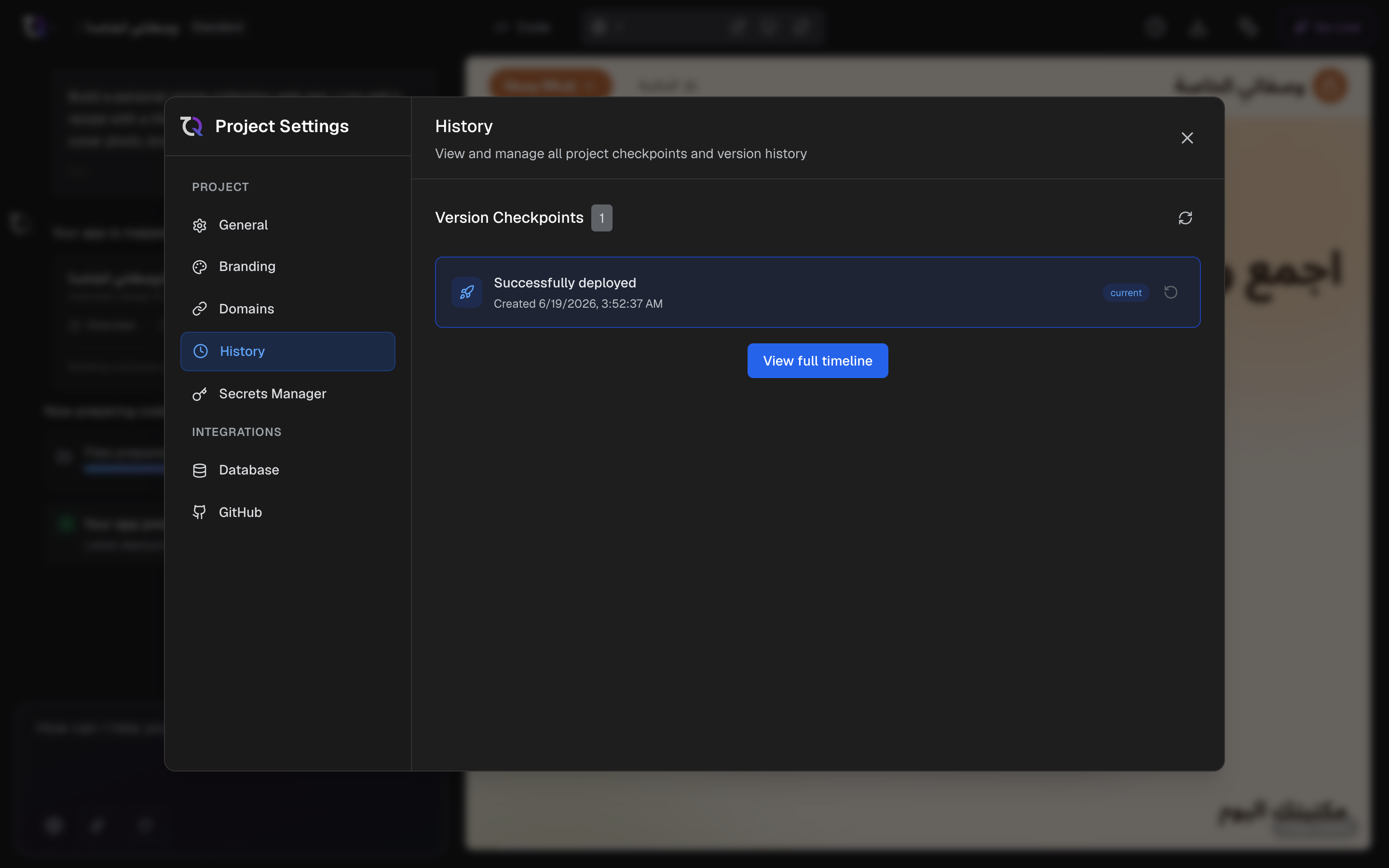
How checkpoints are created
TatbiQ saves checkpoints for you as you work, so your progress is captured automatically:
- When your app is first built and goes live.
- After the AI completes an edit you asked for in chat.
- When you deploy changes you made with the visual editor.
You can also save a checkpoint yourself at any time, for example just before trying a big change you are unsure about.
Restoring an earlier version
If you want to go back, open your project's history and choose the checkpoint you want to return to. TatbiQ restores your app to that version and updates the live preview so you see the restored state right away.
Before restoring, TatbiQ may prompt you to save the current state as a new checkpoint first, so you never lose your latest work by going back.
When to use checkpoints
- Before a big change. Save a checkpoint so you can experiment freely.
- After reaching a good state. Mark a version you are happy with so it is easy to return to.
- When an edit goes wrong. Restore the last good version and try a different prompt.
Checkpoints and editing
Checkpoints work hand in hand with Editing with AI chat. Because each completed edit is captured, you can edit confidently knowing you can always step back. If you are refining your app a lot, checkpoints make it safe to iterate quickly.
Visual edits have their own undo, which covers the changes you make during a session. Checkpoints are the wider safety net for stepping back past a deploy. See Editing visually.